
Domino's take, in one breath
Have you ever wondered how to broadcast a live radio show or stream an event on YouTube. Learn all you need to start broadcasting live today.
On this page 5 sections
YouTube Live gives you the ability to stream live on your channel.
You can broadcast interviews, events, concerts, studio sessions, webcam feeds, and more.
Today, we’ll cover:
- Streaming on YouTube (step-by-step tutorial using OBS).
- Different types of content radio stations upload on YouTube.
- What are copyright strikes?
- And more.
Let’s go:
Part 1. Basics of broadcasting on YouTube
Want your content on YouTube? There are three ways to go about it:
- Create a 24/7 radio stream.
- Broadcast a single show or live event.
- Upload pre-recorded shows.
24/7 radio streams on YouTube
So-called “Pirate Radio Stations” are prevalent on YouTube.
One of them, College Music, has grown from 794 subscribers in 2015 to the present number of 1.02 Million subscribers (January 2019).
Most 24/7 music channels aren't radios exactly. You won't find typical radio programming with interviews, jingles, top of the hour news, etc. There are just playlists.
These streams have looping videos of anime characters, fireplaces, steaming mugs of coffee, etc.
Examples:
- College Music (902,000 subscribers in October 2026): https://www.youtube.com/channel/UCWzZ5TIGoZ6o-KtbGCyhnhg
Some established stations now stream 24/7 on YouTube, such as talkSPORT and France Inter.
Most live audio streams on YouTube are not run by established radio stations. Plenty of TV stations, however, stream on YouTube, including NBC2, ABC7, DW News, Bloomberg Global News, ABC News Live, and more.
Live stream events
It’s typical to find stations that live stream their key events.
Upload pre-recorded shows
Got a special guest in the studio? Tape the interview and upload the footage to YouTube, without the music of course.
What if you have audio shows in your archive? Embed static images or short looping videos on the audio file.
Examples:
- Live interview footage. Mick Foley Talks 20 Years of “Have A Nice Day!”, KROQ radio.
- Filmed shows: HOT 97's channel
Behind the Scenes with South Carolina Public Radio's Vincent Kolb-Lugo
Part 2. Going live on YouTube
In this chapter, let’s get into the specifics of live streaming.
There is one main question people ask.
Can you stream copyrighted music on YouTube?
Yes, but with permission from the copyright holder.
Without proper permission, your video can get a copyright claim, and a valid removal request from the copyright holder gives your channel a copyright strike.
How do copyright strikes work?
Content ID is YouTube’s digital fingerprinting system. It scans your content against any copyrighted material in the system. The copyright holder then receives an alert.
A Content ID match gives your video a copyright claim, not a strike. A strike comes only from a valid legal removal request, which the copyright holder decides to send (YouTube Help).
With a claim, they can make the video unavailable. View its metric like the number of views. Run ads on it, sometimes sharing the revenue with the channel's owner.
So...
If you plan to play a hit song, you need permission from its publishers and its record label.
Licensing such music is quite costly.
Can I play non-copyrighted music?
Content ID only finds music its owners have registered. Unregistered music is still copyrighted and still needs permission: its owner can still send a removal request, and a removed live stream brings a copyright strike.
Planning on using royalty-free music? Ensure it's licensed for use on YouTube.
Step by Step Method for Broadcasting Live on YouTube
Step 1 - Verify your YouTube Account
Turning on live streaming for the first time can take up to 24 hours, so you may not be able to go live straight after reading this article. To get started: Click your profile icon → YouTube Studio.
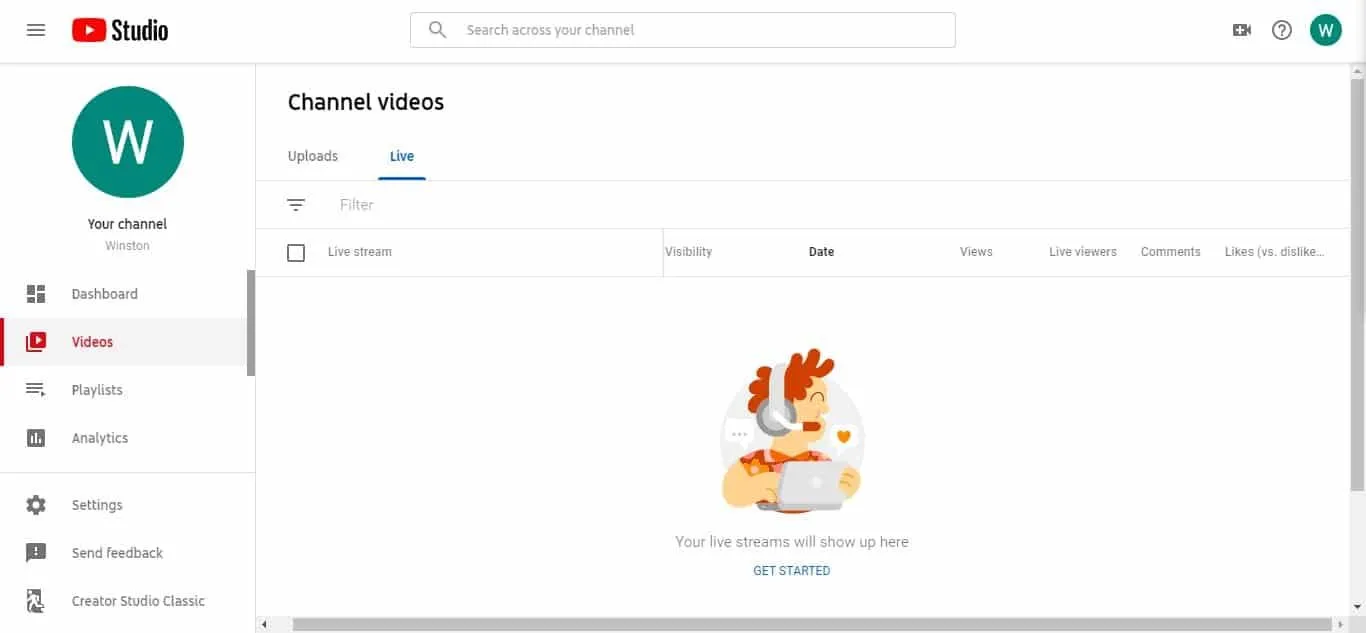
Next, select "Get Started."
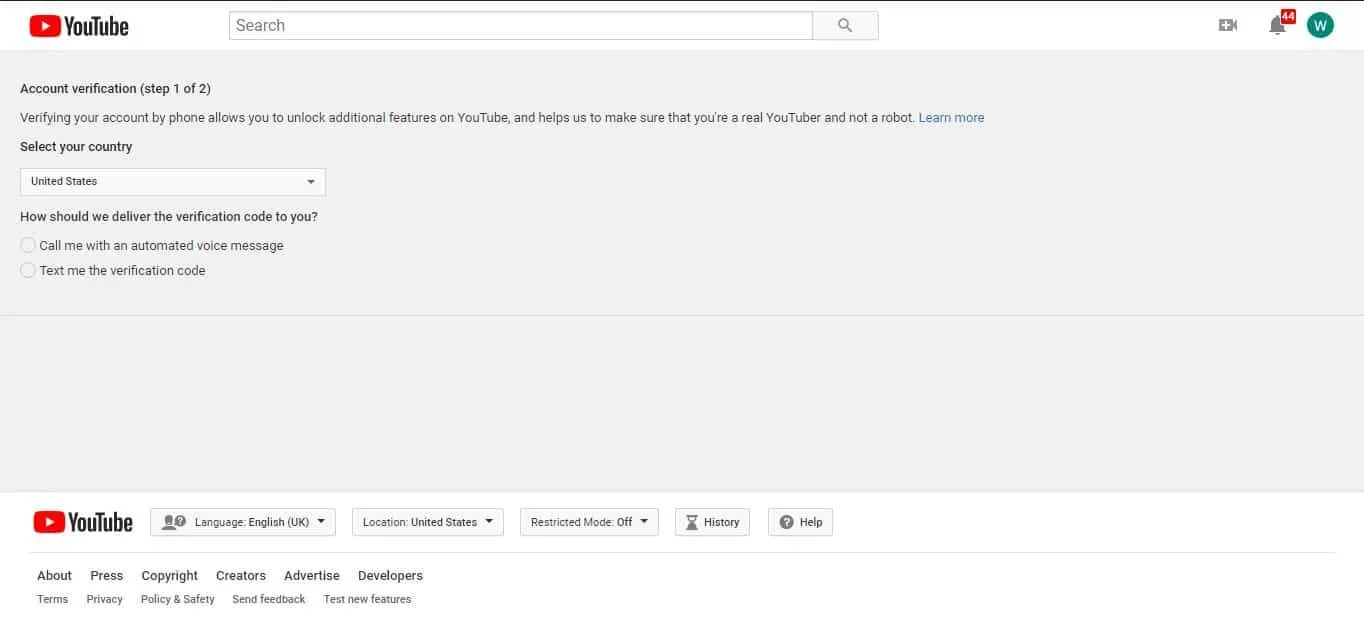
Select your country and enter your phone number. Choose whether to receive a text or phone call with the code.
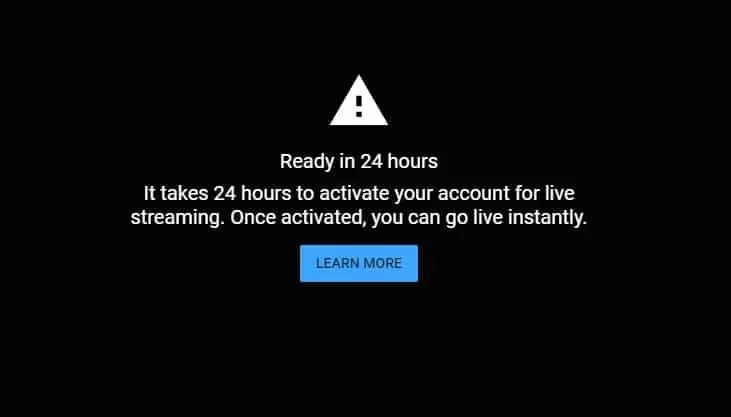
Live streaming can take up to 24 hours to turn on the first time. After this, you can go live instantly. To go live from the YouTube mobile app, you need at least 50 subscribers.
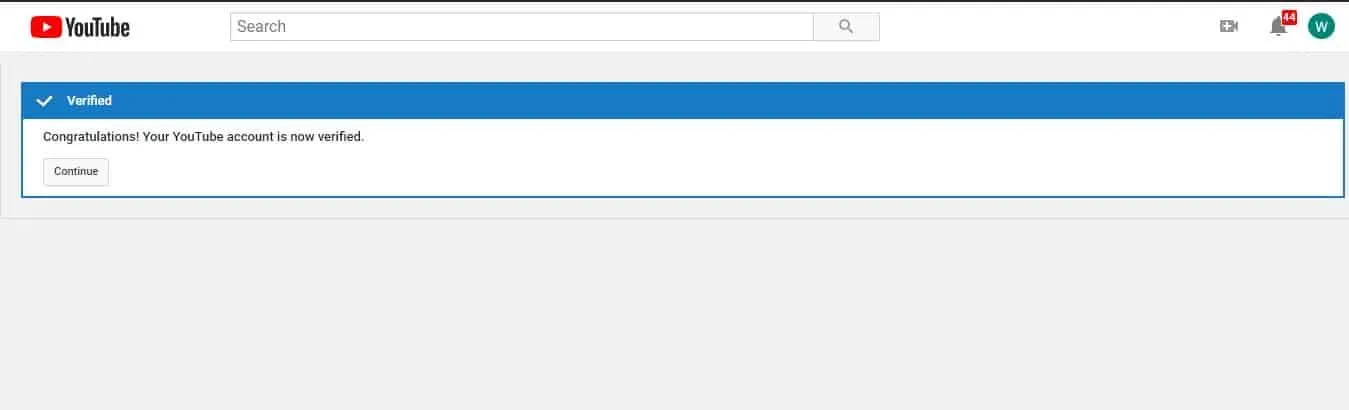
Once you receive this message, you’re set to begin the second step.
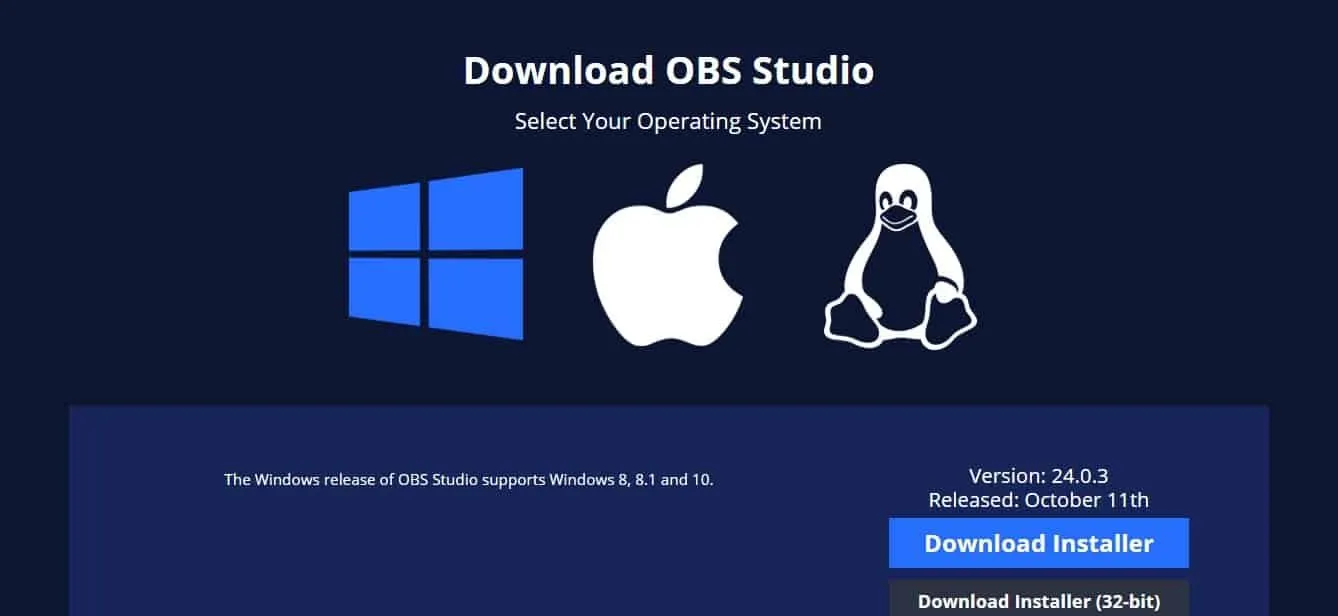
Step 2 - Download and install OBS
Step 3 - Configure OBS stream settings
Here is the first look at OBS. Fortunately, it comes with an auto-configuration wizard that allows you to get started with ease.
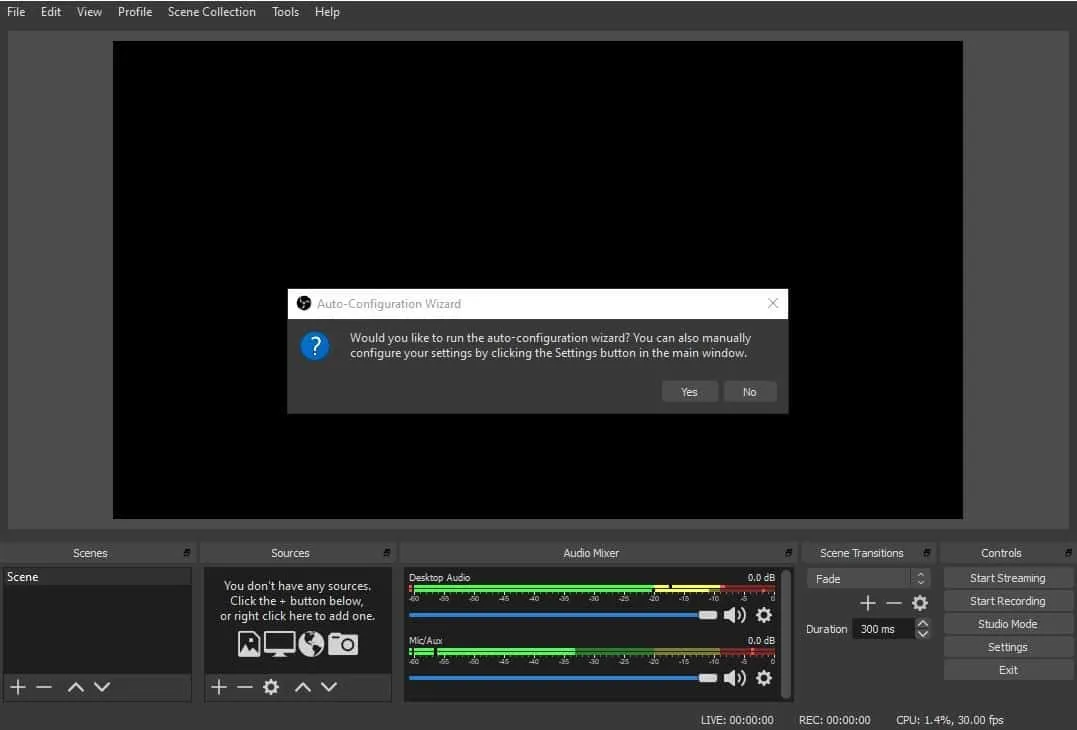
When prompted if you'd like to auto-configure, select "Yes."
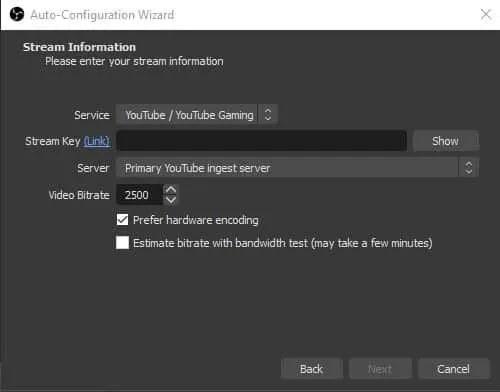
For the streaming information, select that you want to stream with "YouTube - RTMPS."
You'll be prompted for your stream key. You can find it in YouTube's Live Control Room, Stream tab, as shown here:
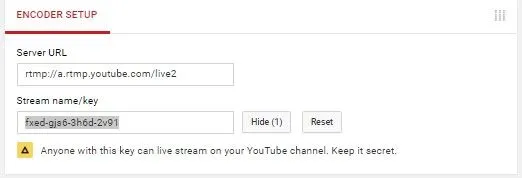
Anyone with your stream key can broadcast live on your channel. So, keep it secret.
Copy the key and paste it in OBS, and complete the rest of the steps.
Step 4 - Configure your video source
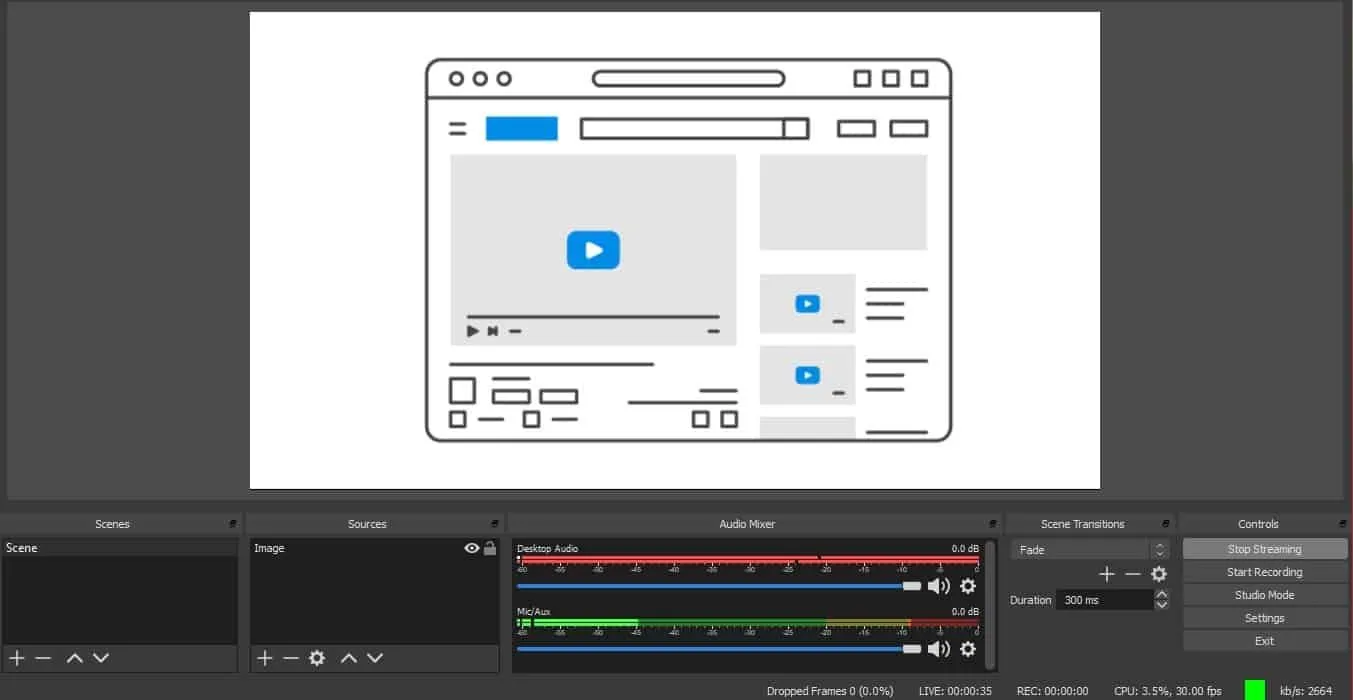
OBS accepts a wide range of video inputs, including your webcam, external cameras, IP cameras, and other applications.
In this illustration, we simply displayed a static image and text overlay. Similarly, you can configure several audio sources.
Step 5 - Create a thumbnail and schedule your live broadcast
Add a thumbnail, title, category and privacy setting.
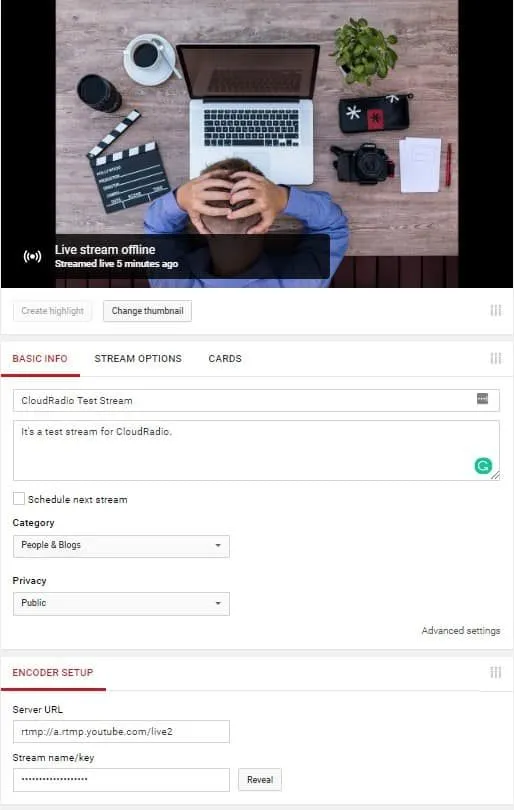
Step 6 - Start your stream
In the "controls" tab, select “Start Streaming.” Next, confirm that your stream is working.
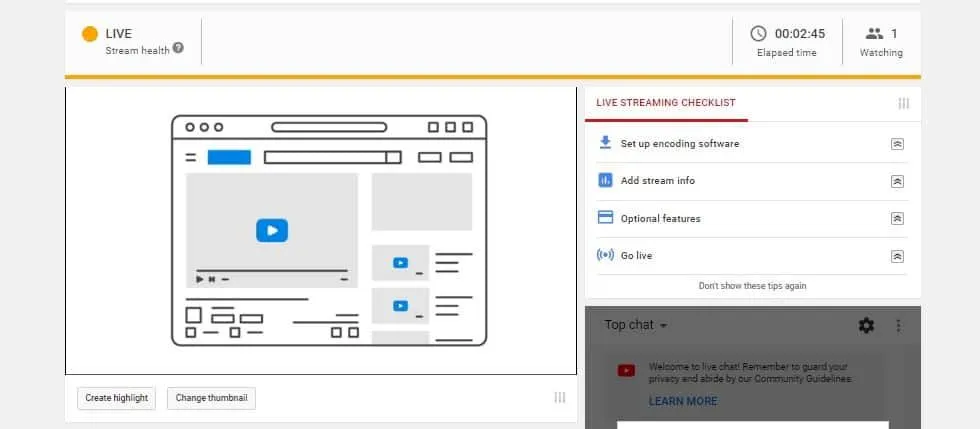
You can view your stream health, enable live chat, and see how many people are watching.
Part 3. Best practices to make your stream the best
- Ensure you have the right equipment. Good camera, quality PC, etc.
- Use a connection with fast upload speeds (YouTube recommends 4 Mbps of video at 480p and 8 Mbps at 720p, so you need more upload than that).
- Have backup systems in place. And expect several things to go wrong. Your PC can crash. Mics may stop working. Power might go off. Your internet connection may become unstable.
- Create a quality stream.
- Promote your live event early and effectively. Give people incentives for tuning in like the chance to grab a prize.
- Prepare well in advance and practice.
Other encoders
OBS is open-source and popular with many YouTubers. Still, there are other software and hardware solutions at your disposal.
Software encoders include:
- Streamlabs (https://streamlabs.com/)
- XSplit Broadcaster (https://www.xsplit.com/broadcaster)
Hardware encoders include:
- Elgato HD60 S, a capture card for a camera, used with OBS
Other resources
- Set up your live streaming encoder
https://support.google.com/youtube/answer/2907883?hl=en
- Live encoder settings, bitrates, and resolutions
https://support.google.com/youtube/answer/2853702?hl=en&ref_topic=9257892
Thanks for telling us.
Sorry about that. Tell us what was missing and we'll fix the post.
CloudRadio One
Ready to put this on air?
- AutoDJ keeps your station playing around the clock
- Go live from the software you already use
- A player for your website
- Unlimited listeners
$39/mo
Start your stationOne plan, everything included. No contracts, cancel anytime.