In this Mixxx tutorial, find out how to use it to broadcast to your Icecast, or Shoutcast server.
Many broadcasters use this free and advanced Dj program to create shows and automate radio broadcasting.
Software information
Platform: Windows, Mac OS & Linux
License: Free
Server type: SHOUTcast & Icecast
Download Page: https://www.mixxx.org/download/#stable
Overview
At its core, Mixxx is a powerful DJing tool available across the major platforms. If you're having a hard time finding a radio automation software for macOS, Mixxx is an excellent alternative.
Mixxx is open-source, and its features are comparable to paid Dj solutions. It also supports a wide array of MIDI and HID controllers.
Key features
It provides a fun way for radio broadcasters to host live shows. They can play music tracks, capture sound from mics, and more. Some of its standout features include:
- Auto DJ
- DJ controller support
- Sound effects
- Beat sync
- Four mixing decks
- Support for a wide range of audio and video formats
- Built-in encoder
- Crossfade control
- Equalization
- Recording and live broadcasting
- Four Mic and Aux inputs
Connect to your server
Install Mixxx
In macOS:
- Open the Mixxx.DMG file by double-clicking.
- Drag and drop Mixxx into your Applications folder.
You can download Mixxx from the App Store.
In Windows:
- Open the downloaded .exe file to run the installer.
If you're stuck when installing the program, you can find additional help here.
Install LAME for MP3
Are you looking for a way to add the MP3 lame encoder for Mixxx? You'll need to configure the LAME library.
In Windows:
- Download the Lame binaries file from Rarewares.org.
- The present version is the libmp3lame 3.99.5. Select the download link that corresponds to your platform (x86 or x64).
- The LAME library is a Zip file that you have to extract.
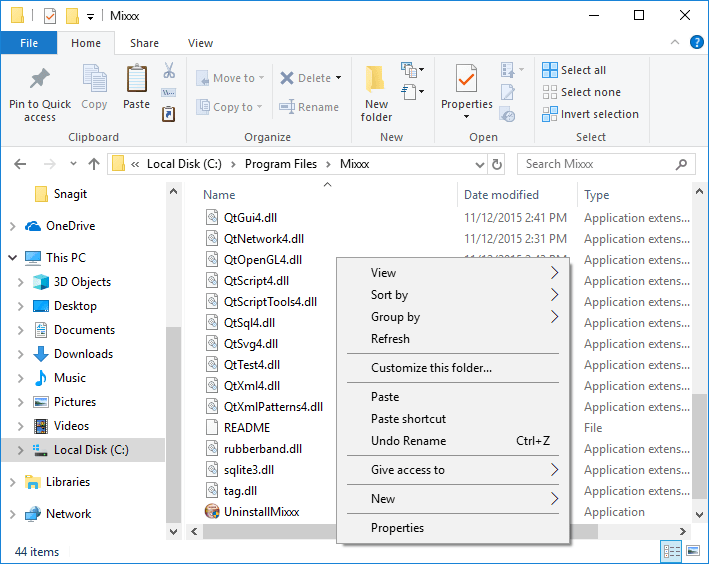
- Copy the libmp3lame.dll to the Mixxx folder (e.g. C:\ > Program Files > Mixxx)
For macOS:
- Download the Lame 3.98.4 universal x86_64 zip (Download link).
- Unpack the archive and install it.
There are additional methods for installing MP3 support. Find comprehensive installation instructions here.
Configure the encoder
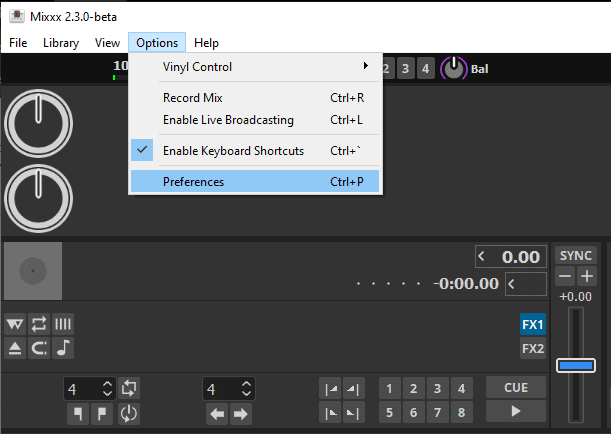
On the main menu on Mixxx, click Options > Preferences > Live Broadcasting
You'll need your connection details from Studio. See Broadcasting Live for where to find your server address, port, mount point, username, and password.
Enter server details
Enter the values from Studio into the corresponding fields in the encoder. Match the server type (Icecast or Shoutcast) to your radio's configuration.
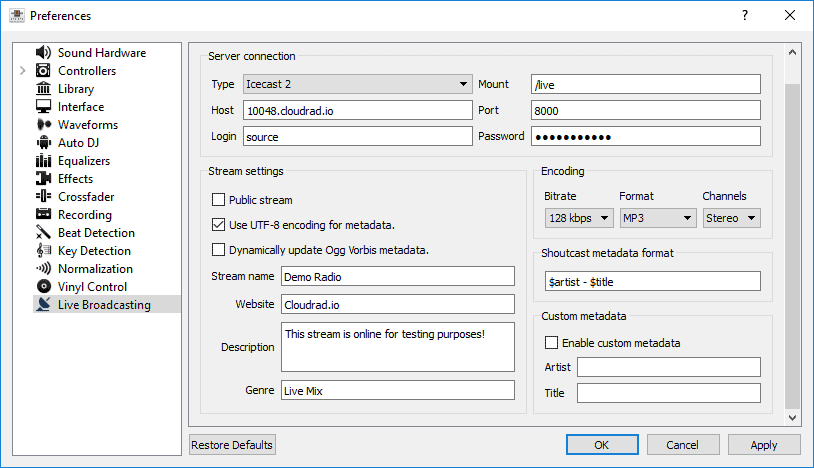
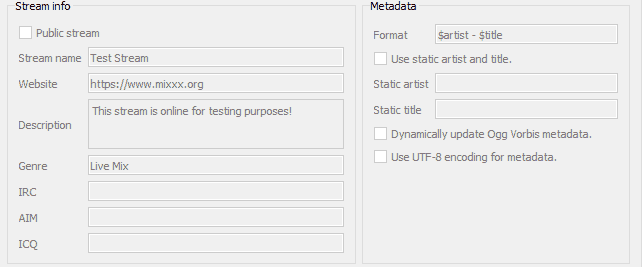
Stream name: Must be provided to work with SHOUTcast 2. If not, the stream will be rejected.
Encoder settings:
- We recommend a bitrate of 96 kbps or more for MP3 streaming. Most MP3 streams broadcast at 128 kbps, regarded as CD-sound quality.
- MP3 encoding works if you installed the LAME library.
- Leave the metadata format as it is unless you want to customize what listeners see as the music tracks play on your radio player.
- Click Apply and OK to Finish
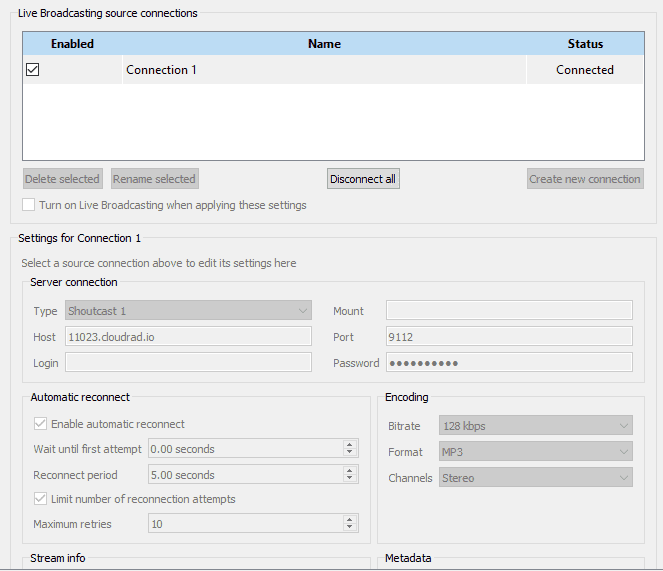
For a successful connection, you will see the status as connected.
Start broadcasting
Talking over the music is possible since you get four microphone inputs. You can also connect your broadcasting desk using the Aux inputs. Recording your shows can be achieved.
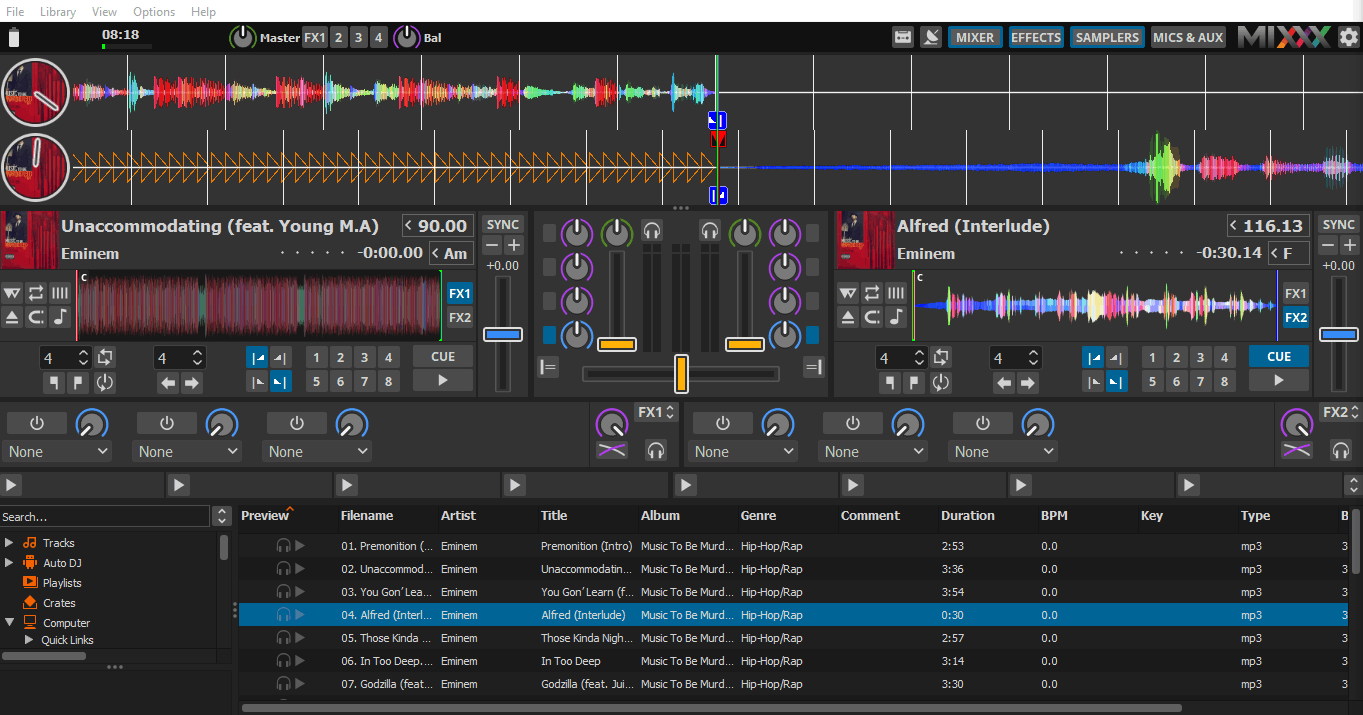
Learn more about the software by consulting the manual or review video tutorials on YouTube.
Need an alternative to Mixxx? Explore over 20 radio automation, DJ, and encoder programs on our broadcast software guide.