Learn how to set up your broadcasting server with Station Playlist. All the instructions included and licensing information.
Software information
Platform: Windows only
License: Commercial (from $135)
Server type: SHOUTcast 2, SHOUTcast 1, Icecast
Download Page: https://stationplaylist.com/download.html
Overview
Station Playlist Studio is a radio automation software. It comes with all the features needed to broadcast online radio. You can run your station unattended with the Automation function or even use the software for live assist & playing tracks during live shows.
You'll need to create playlists files and rotations. For spot scheduling, SP provides the Station Playlist Creator. Alternatively, you may use other specialized third-party music schedulers.
Key features
It's no secret that SP has many raving fans and long-term users. They enjoy all the standard features found in radio automation programs, including:
- An intelligent crossfading system
- Voice tracking
- Cueing
- Event Scheduler
- Automated time and temperature announcements
- Line input and Microphone input
- Stream listeners statistics
- Password protection
- A fail-safe system that prevents songs from repeating
- And more
As you test out SP-Studio, also check out the scheduling features that Station Playlist Creator provides.
Here are steps on how to stream with Station Playlist Studio:
Connect to your server
Install Station Playlist
After the download:
- Open the StudioDemo .exe file to run the Initial Setup Wizard
- Configure the program for use
- On the "Stream Encoding" winder, select "Yes" at "Enable the stream encoder within Studio?"
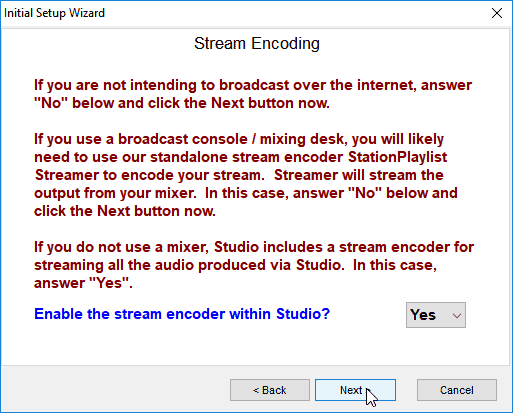
- Click Next to proceed with the configuration
The stream encoder will appear after the Initial Setup Wizard.
Configure the encoder
In the SPL Encoder window:
- Click Add Encoder
- Right-click on the new encoder > Configure
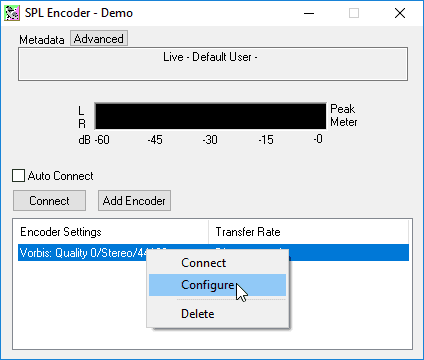
You'll need your connection details from Studio. See Broadcasting Live for where to find your server address, port, mount point, username, and password.
Enter server details
Enter the values from Studio into the corresponding fields in the encoder. Match the server type (Icecast or Shoutcast) to your radio's configuration.
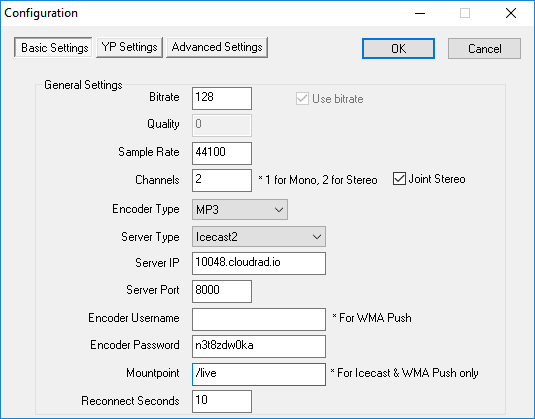
Start broadcasting
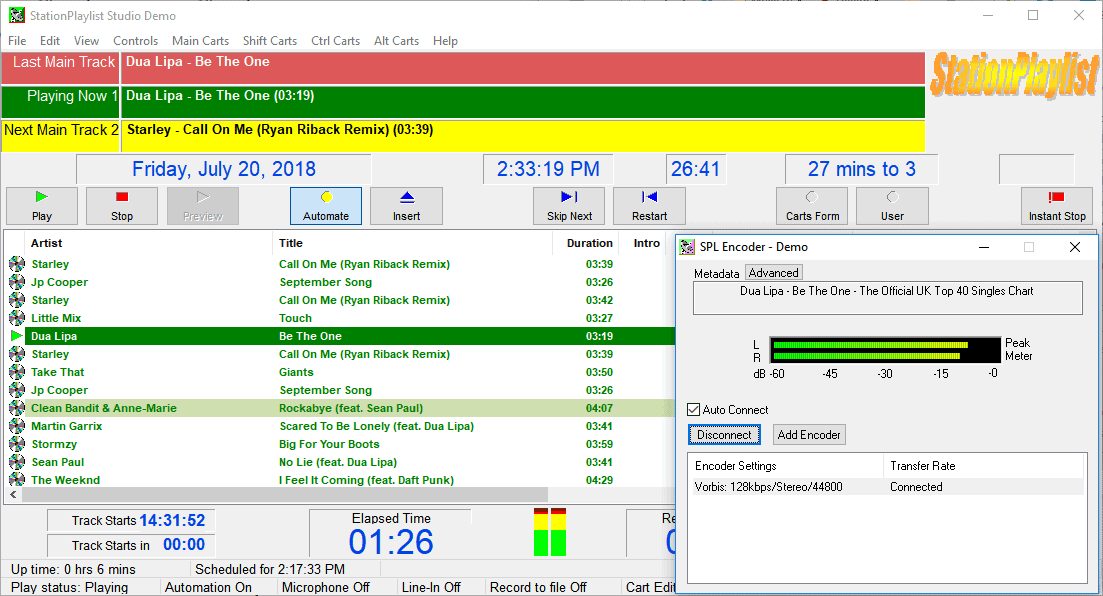
- To broadcast: Right-click the encoder > Connect
Build a playlist by dragging and dropping music from the explorer.
For automation: on the main menu, click Controls > Automate.
Click Play to start
Troubleshooting
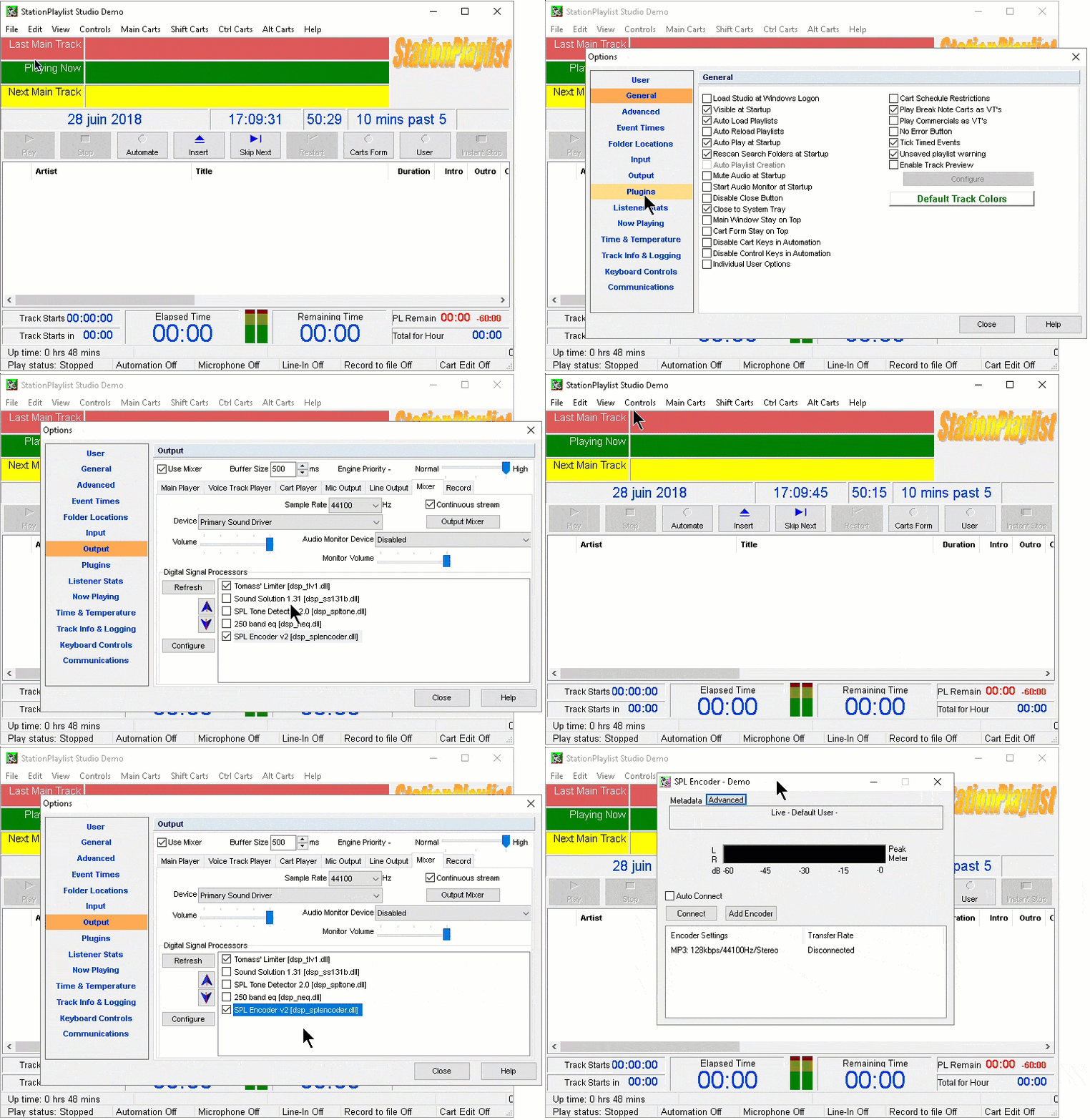
If you don't see the SPL Encoder window, go to View > Options > Output > Mixer. Deselect SPL Encoder, click Close. Repeat the same steps, but select SPL Encoder, click Close. The window will appear.
Learn how to use the program by clicking Help (main menu) > Studio Help.
You can also visit their FAQ page or contact their support.
Need an alternative to Station Playlist Studio? Explore over 20 radio automation, DJ, and encoder programs on our broadcast software guide.