Learn how to setup your broadcasting server with Virtual DJ 8. All the instructions included and licensing information.
Software information
Platform: Windows & macOS
License: Free and Commercial (from $49)
Server type: SHOUTcast 2, SHOUTcast 1, Icecast
Download Page: https://www.virtualdj.com/download/index.html
Overview
It’s the most downloaded djing software in the world. Professional Djs and millions of bedroom Djs use Virtual Dj to mix tracks from their laptops and computers. The software boasts of over 121 million users.
Key features
Broadcasters can also use Virtual Dj as a broadcast radio software. There are many features to take advantage of including:
- Sync
- Automix
- Crossfading
- Library management
- Karaoke
- Video mixing
Virtual Dj also gives users access to online catalogs containing millions of songs, videos, and karaoke tracks.
Connect to your server
Install Virtual DJ
On Windows:
- Open the downloaded .exe file to run the setup wizard
- Launch the program
On Mac:
- Open the downloaded file and double-click on the installation file to run the software installer
- Run Virtual Dj from your applications folder
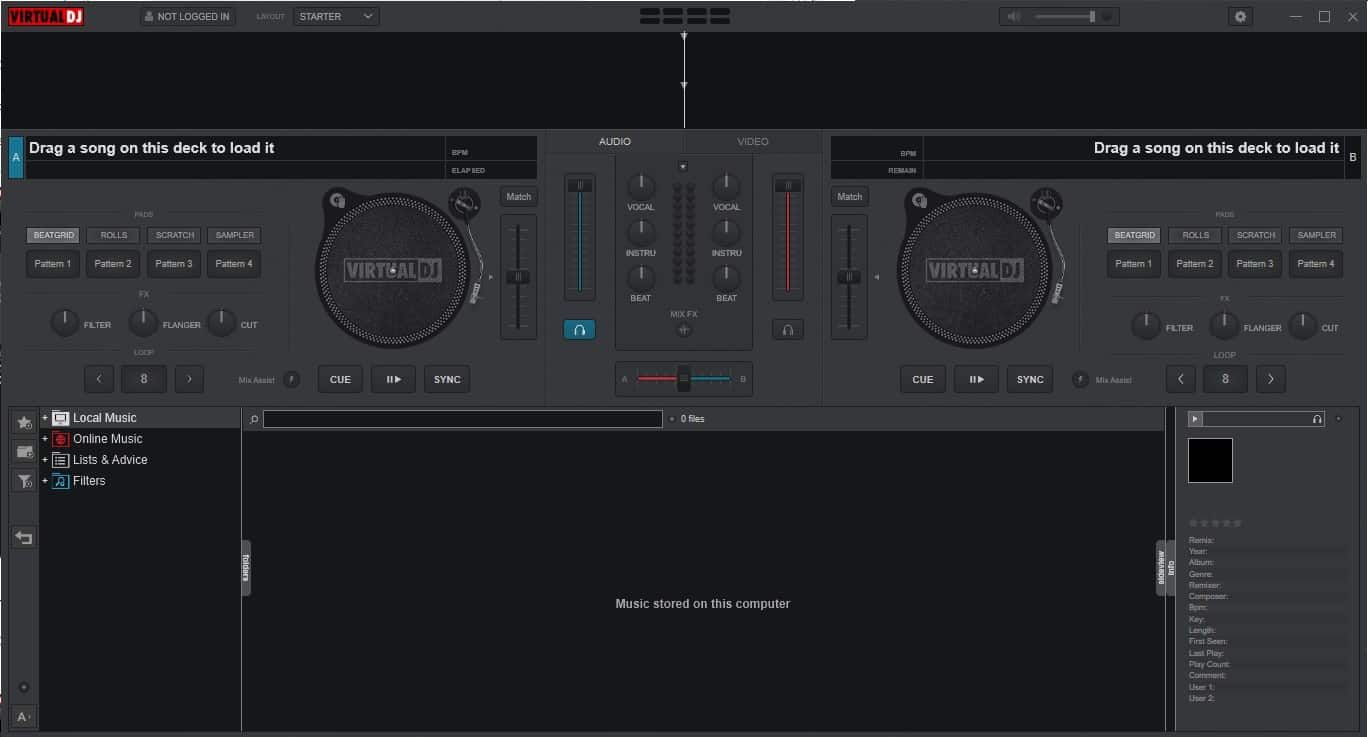
The first look:
Configure the encoder
- Open the settings tab on Virtual Dj
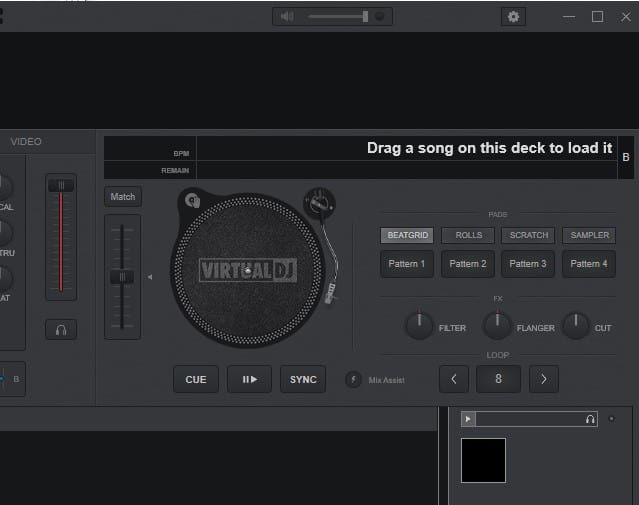
- On the setting’s side panel, click Broadcast > Radio Server.
- Copy the connection details from your hosting provider to Virtual Dj
You'll need your connection details from Studio. See Broadcasting Live for where to find your server address, port, mount point, username, and password.
Enter server details
Enter the values from Studio into the corresponding fields in the encoder. Match the server type (Icecast or Shoutcast) to your radio's configuration.
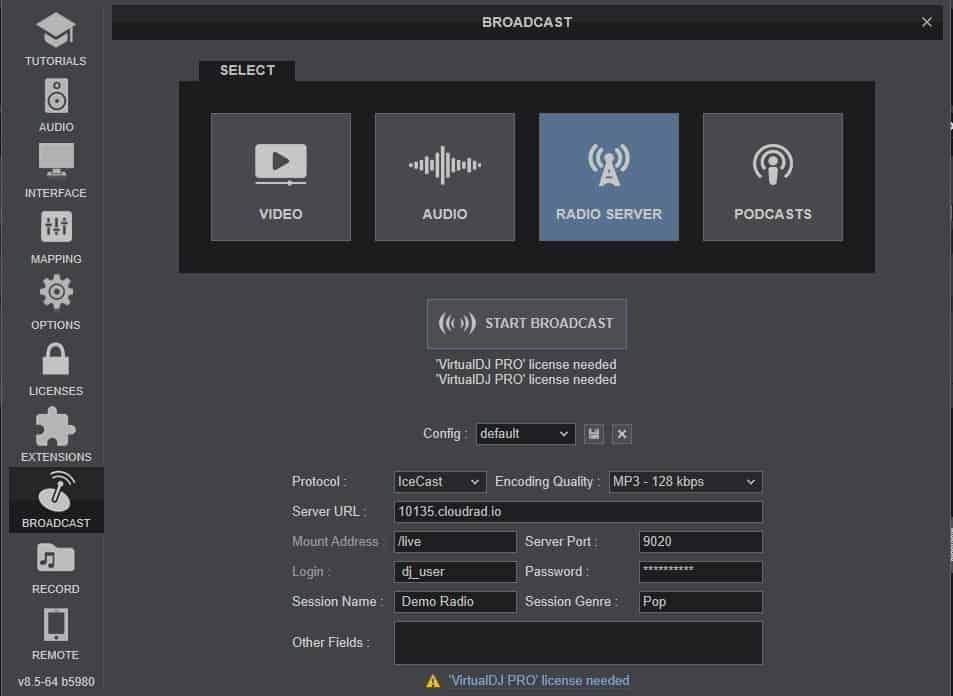
Audio Streaming Settings
We recommend keeping the encoding quality at 128 kbps (It’s CD-quality) MP3.
After connecting, check your console dashboard to see if you're connected.
Start broadcasting
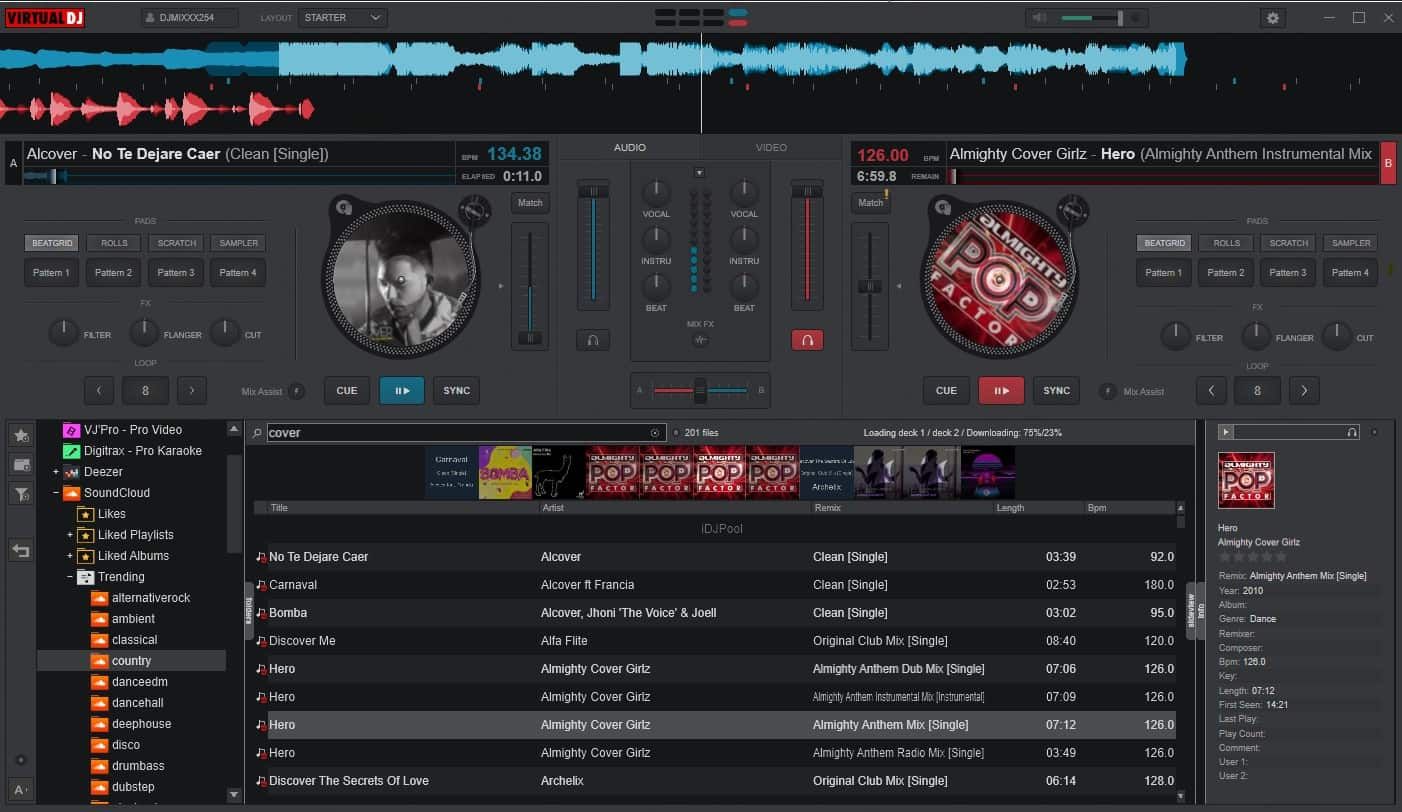
- Load music in the decks and click Play
- You can also add music from cloud sources such as SoundCloud.
Automix feature
- Create a playlist from the right-hand navigation panel
- Load tracks into the playlist
- Right-click on playlist folder > Load in AUTOMIX
Note
You will be restricted when broadcasting in the free version. But there is a workaround this issue. Consider using a standalone encoder like RocketBroadcaster, BUTT, AltaCast, etc. Or, upgrade to the PRO version to enjoy their stream encoder.
To learn more about Virtual DJ, visit the user manual.
Need an alternative to Virtual DJ 8? Explore over 20 radio automation, DJ, and encoder programs on our broadcast software guide.