Made in Italy with love, MB Studio is a fully-featured radio automation software. It has all you need to broadcast your internet radio. Neatly organized, light, and simple to use, you'll fall in love with it too. Here is all you need to set it up with your broadcasting server.
Software information
Platform: Windows
License: Paid with DEMO Version
Server type: Shoutcast, Icecast & Internal Server
Download Page: https://www.mbradio.it/en/download-en
Overview
Are you interested in the powerful features of MB Studio? Well, get the demo version to try it out. It comes with a premade template of songs, teasers, and announcements that showcase the capabilities of the program.
The limitation is that you can use AUTOPLAY with a maximum amount of 100 songs allowed. Once the time comes to purchase the software, you can expect to pay 199€ for MB Studio Home and 700€.
Key features
MB Studio stands out for its automation functions. But there are other features we love about the program, including:
- The ability to rebroadcast an external stream from a Shoutcast or Icecast server.
- View live listeners directly in the program
- RSS Reader for the latest news updates
- Integrated CD Ripper.
- Automatic liners, time announcements, and downloads from the internet.
- Built-in audio recorder to record voice tracks.
- Announcements of song titles or weather updates using computer generated speech voices.
- Custom rules for music selection,
- Teaser support
- And more.
Connect to your server
Install MB Studio
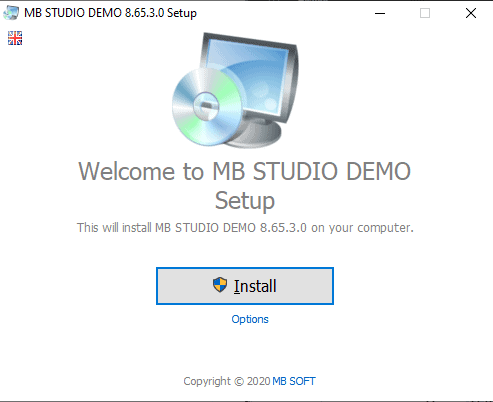
Installing MB Studio is quite easy. Just download the setup file from their official website. You will not need to install any external databases making the installation process quick.
Configure the encoder
MB STUDIO comes with an integrated encoder. Alternatively, you can choose to use their standalone encoder, MB RECASTER.
You can configure multiple encoders or even recast an external stream. Here are the steps to set it up:
- Launch MB Studio if you don't have it running yet.
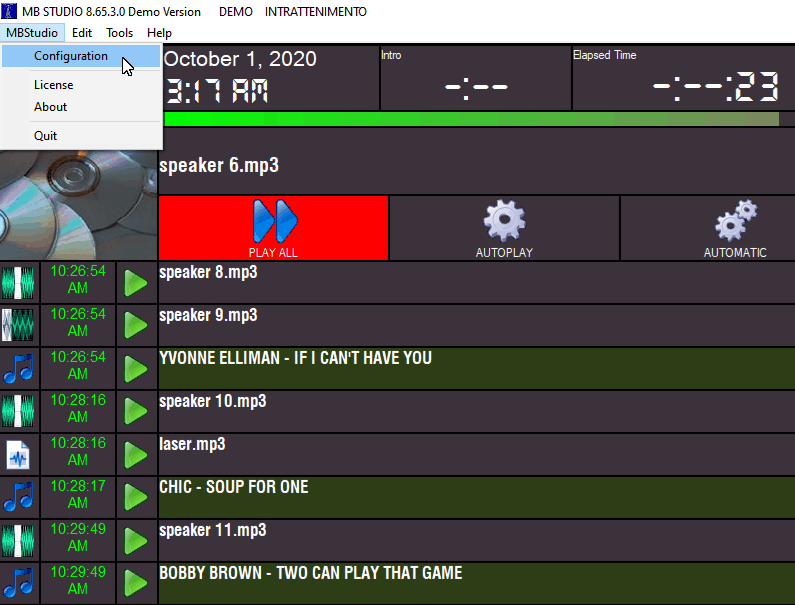
- Select MBStudio from the main menu > Configuration
- Select Webcast and locate the encoder settings.
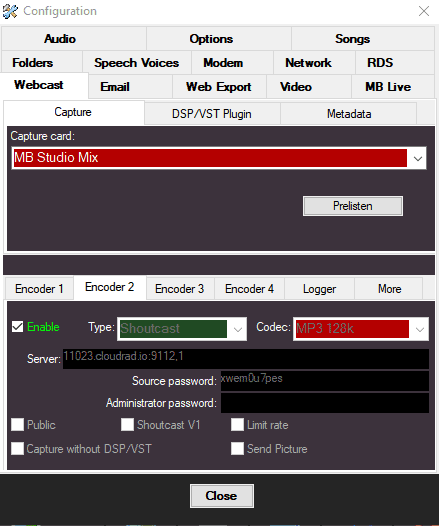
- Select Encoder 2, and you'll need your server settings provided by your hosting provider.
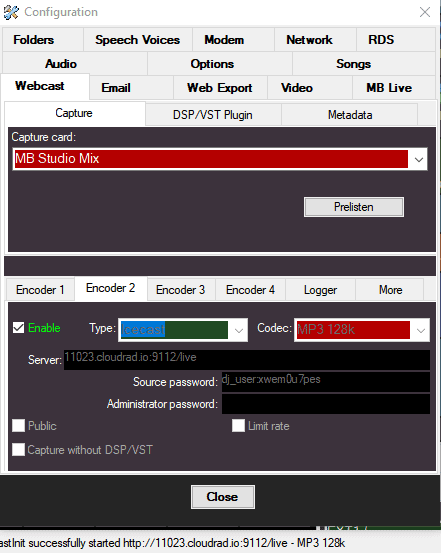
Entering the server settings may seem confusing since there are no input fields for the port, username, etc. But worry not! Here is the correct way to do it:
You'll need your connection details from Studio. See Broadcasting Live for where to find your server address, port, mount point, username, and password.
Enter server details
Enter the values from Studio into the corresponding fields in the encoder. Match the server type (Icecast or Shoutcast) to your radio's configuration.
Start broadcasting
MB Studio has a lot to offer, more than we can cover in the scope of this article. Since the software has been around for a while now, there are many sources of information.
- Official MB Studio Guide ( https://www.mbradio.it/en/89-mb-studio/mb-studio-guide)
- Video Tutorial (https://www.mbradio.it/en/forum/3-mb-studio/78402-video-tutorial-come-sfruttare-al-massimo-il-campo-genere-delle-canzoni)
Need an alternative to MB Studio? Explore over 20 radio automation, DJ, and encoder programs on our broadcast software guide.