Learn how to download and install NextKast on your computer. Find out how to use the built-in encoder to stream to your broadcasting server.
Software information
Platform: Windows only
License: Trial and Commercial
Server type: SHOUTcast 2, SHOUTcast 1, Icecast
Download Page: https://www.nextkast.com/
Overview
Launched in 2011, NextKast was developed by Winston Potgieter, an internet radio broadcaster, to address problems that internet broadcasters face. The software is designed to help you to automate internet broadcasting without the steep learning curve.
Key features
Nextkast gives you professional results using notable features such as:
- Free trial for 14 days;
- Internal sub-directories (no database required);
- Can run Am/FM stations;
- Music Scheduler;
- Lifetime free updates;
- Powerful voice tracking system;
- Live mic input and line Input (for Skype);
- Adjustable crossfade times;
- Automatically generated playlists with rotations;
- 12 built-in encoders.
Connect to your server
Install NextKast
Download the trial version valid for 14 days.
After the download:
- Open the downloaded .exe file to run the setup wizard
- Launch NextKast
Configure the encoder
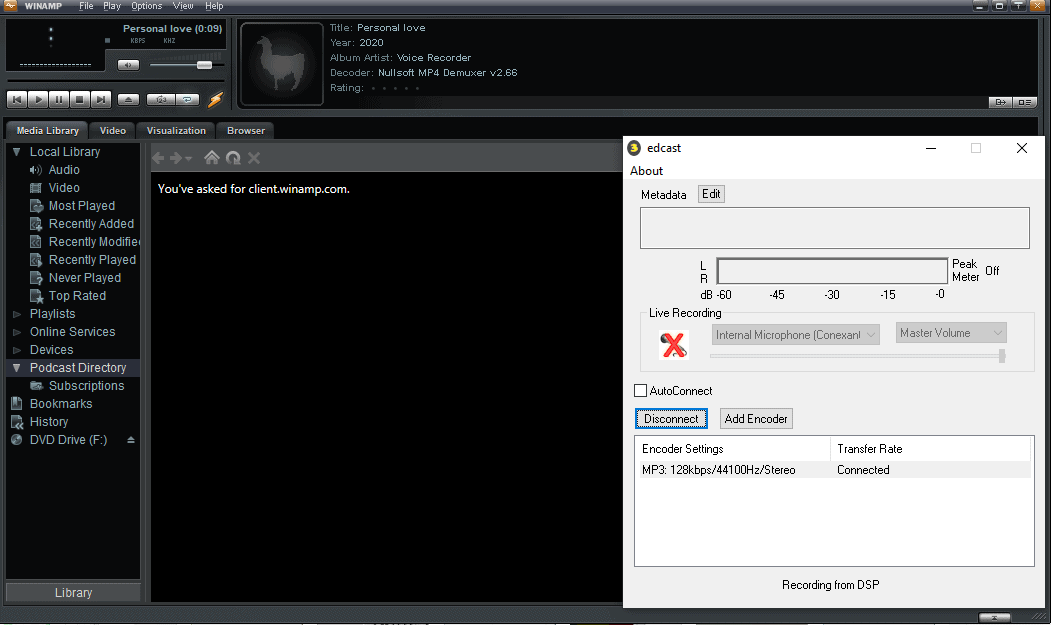
- From the main toolbar, click Broadcast Settings.
- Find your server configuration details.
You'll need your connection details from Studio. See Broadcasting Live for where to find your server address, port, mount point, username, and password.
Enter server details
Enter the values from Studio into the corresponding fields in the encoder. Match the server type (Icecast or Shoutcast) to your radio's configuration.
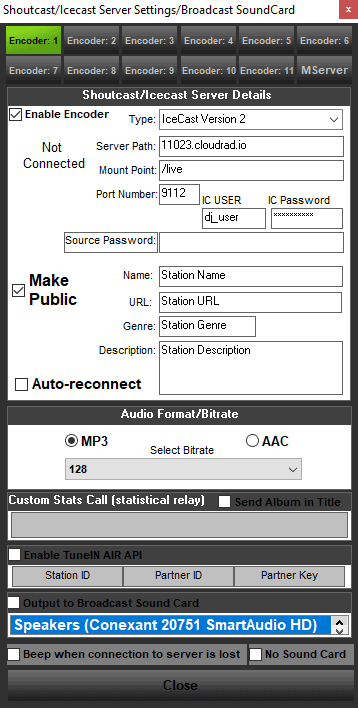
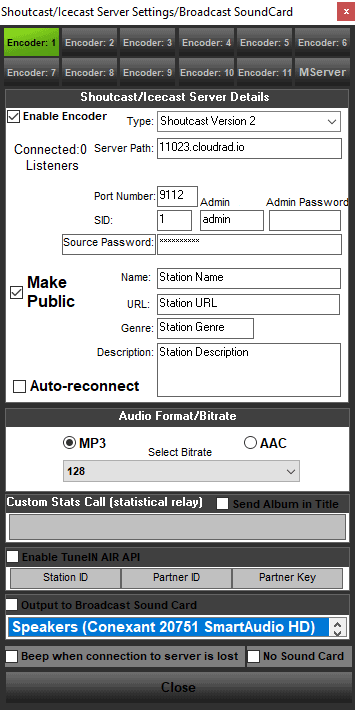
Audio and bitrate settings
- Enter your station Name, URL (website), Genre, and Description
- Tick Auto-reconnect (establishes the connection automatically)
- Recommended bitrates: 128 kbps (CD-quality) MP3 or 64 kbps AAC+
- Click Save
Start broadcasting
NextKast makes it easy to run your station unattended by creating rotations. Rotations are made up of categories. NextKast essentially picks one song from each category and plays it as part of a continuous playlist.
Creating categories is quite straightforward. Just follow the steps from 1 to 9.
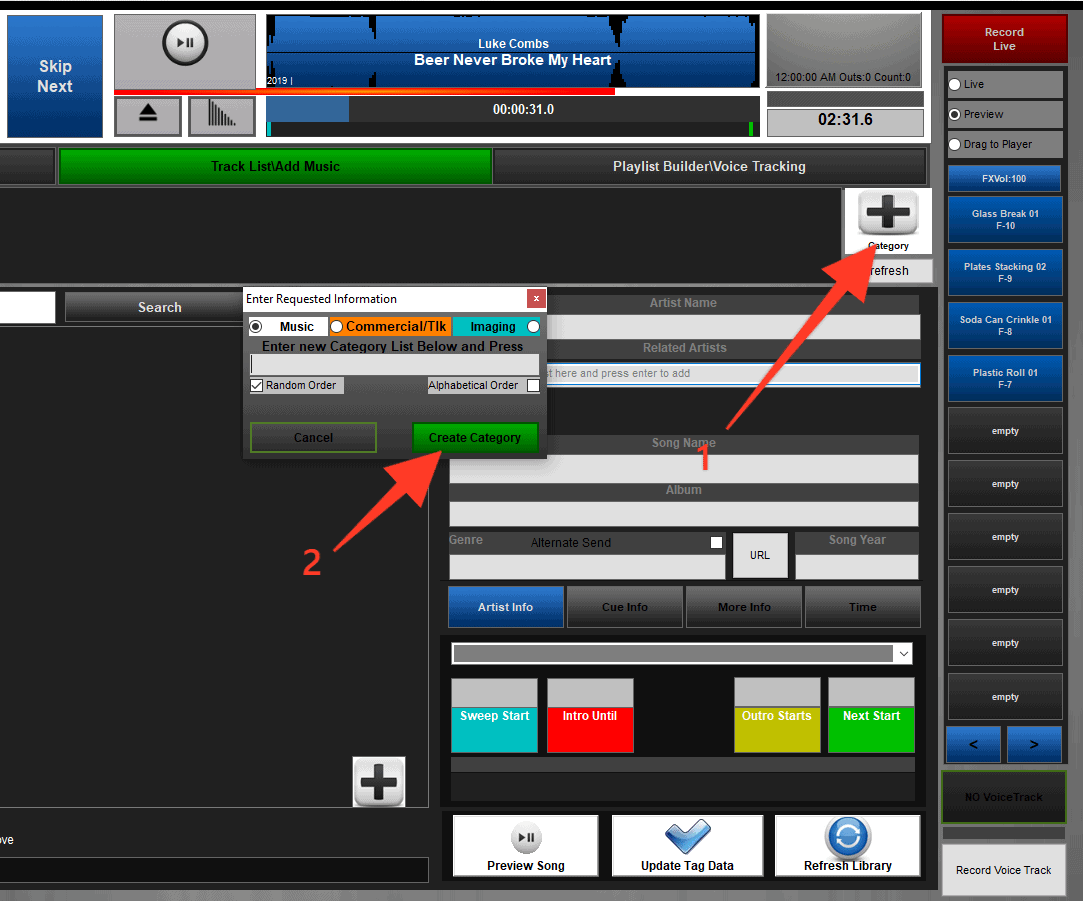
- Name your category appropriately.
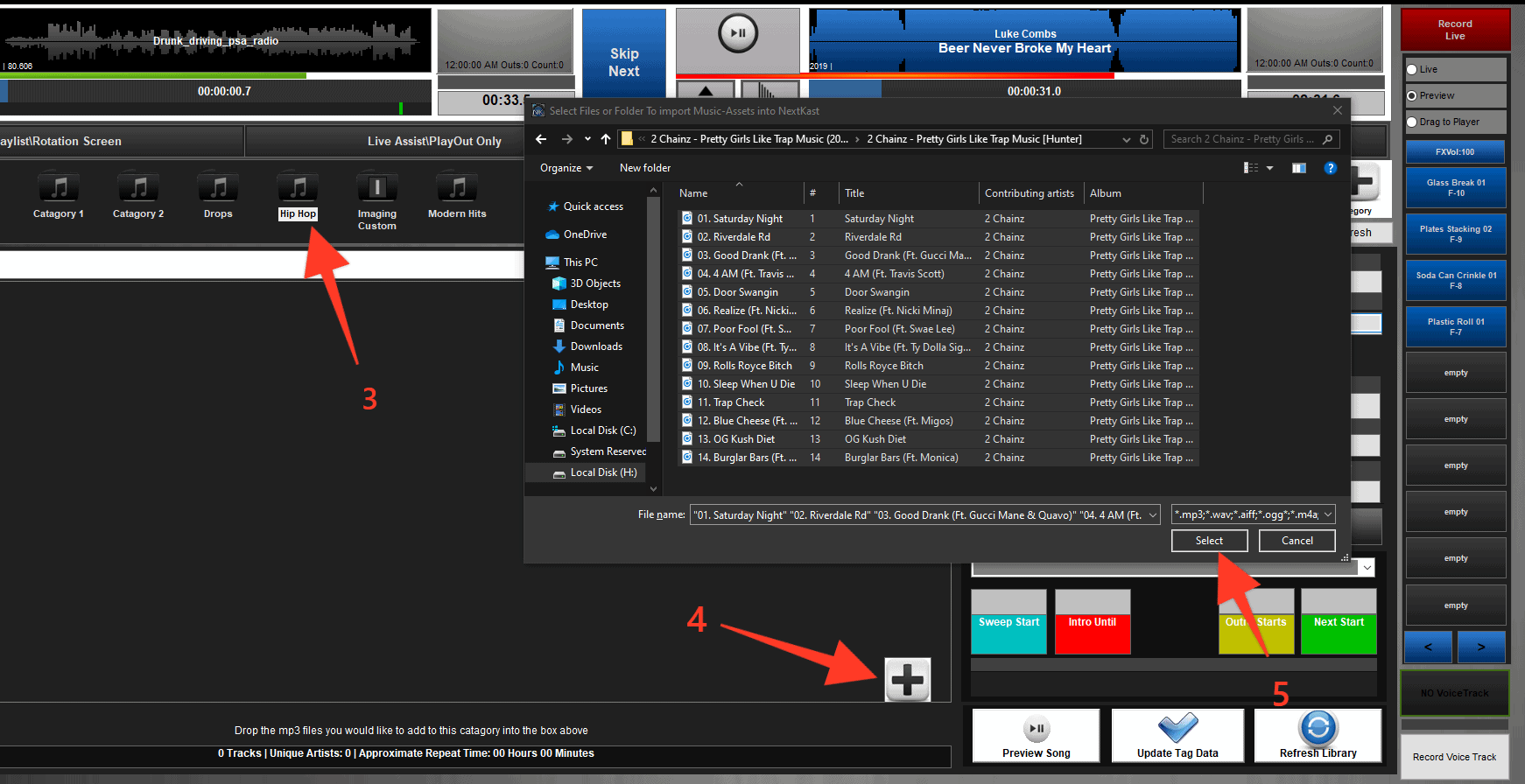
- Add songs to your category (Step 4 and 5).
- Before step 6, you can create several categories.
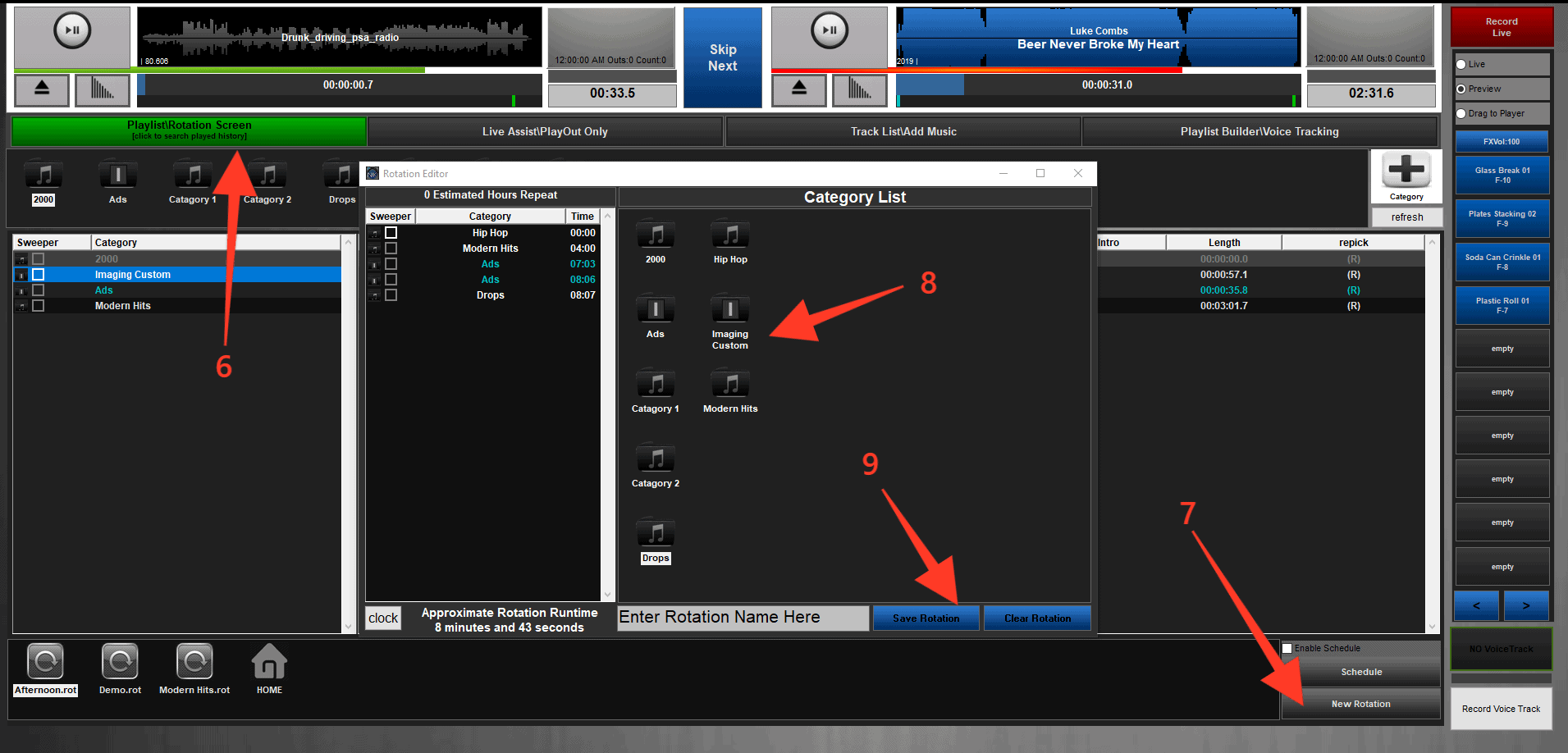
- Give your rotation a new name before saving it in step 9.
- You'll find it on the bottom toolbar.
- Just double click the new rotation you have created to load it.
- Ensure that the AUTO function is selected. Click play on the left player (Player 1).
Learn more about NextKast's capabilities at the software's help section.
Need an alternative to NextKast? Explore over 20 radio automation, DJ, and encoder programs on our broadcast software guide.