
Find out how to install and broadcast with PlayoutONE + Live streamer. Broadcast to your Icecast and Shoutcast server, monitor your stream, and more.
Software information
Platform: Windows only
License: Free (PlayoutONE Standard, legacy)
Server type: SHOUTcast & Icecast
PlayoutONE: https://aiir.com/ (formerly playoutone.com)
Overview
PlayoutONE provides all the automation and playback features you need as a radio broadcaster. You can use it for music scheduling, live assist, or complete unattended broadcasting.
This guide uses PlayoutONE Standard, the free suite. Aiir calls PlayoutONE Standard legacy software: it is available as-is, with no updates or support, and Aiir points professional stations to PlayoutONE Pro. The setup steps below still apply to the Standard suite.
The suite comprises of related apps that work in tandem with the main playout system, including the Livestream, Auto Importer, FileCopy, Serial Data Receiver, Surface, and Monitor.
Note that: You'll need LiveStream to set up streaming encoders. It can be downloaded separately, and used with other playback and radio automation programs.
You will learn how to...
- Install the Playout Standard Suite.
- Configure LiveStream (standalone encoder).
Install PlayoutONE
Get PlayoutONE Standard from Aiir's PlayoutONE Standard page. It's a large download of about 400 to 500 MB.
- Open the .exe file to run the Setup Wizard.
- We recommend selecting all the apps, for now, to test them out.
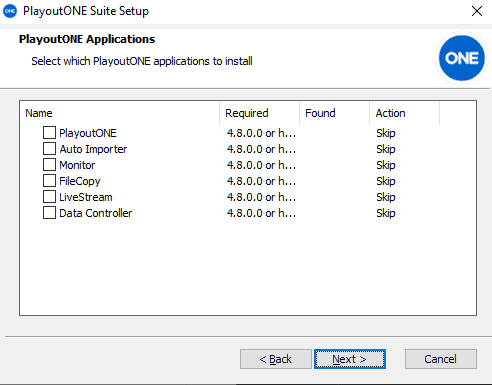
PlayoutONE stores your user settings on the Microsoft SQL database. It's installed alongside the program via the Setup Wizard.
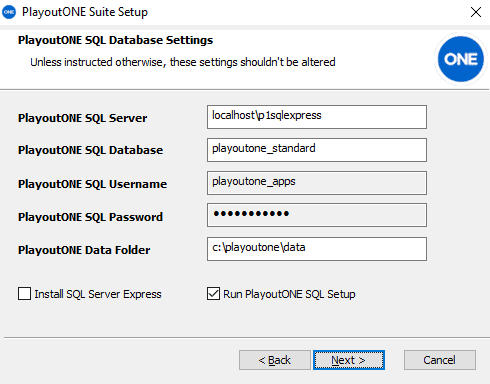
When you click Next, the Setup Wizard will download & install the prerequisite software (e.g., Microsoft SQL Server 2012).
It may take some time to install the SQL database. After the installation:
- Click to Finish. (This will launch PlayoutONE).
- Select Trial on the PlayoutONE License Window.
The program will then establish a connection to the database:
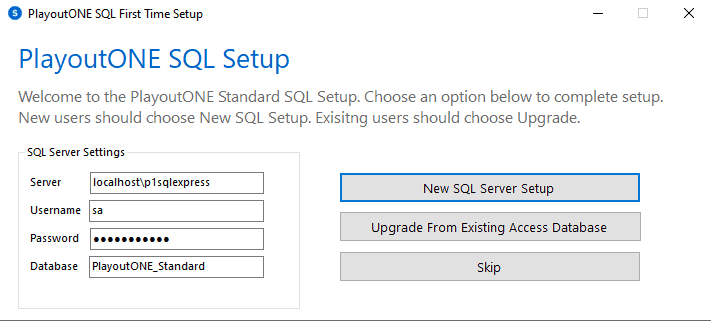
If you're a new user, select New SQL Setup. Subsequently, you will get a notification that PlayoutONE_Standard was successfully installed.
Configure the encoder
After setting up PlayoutONE, you will need to set up Livestream.
Launch the Livestream Desktop App.
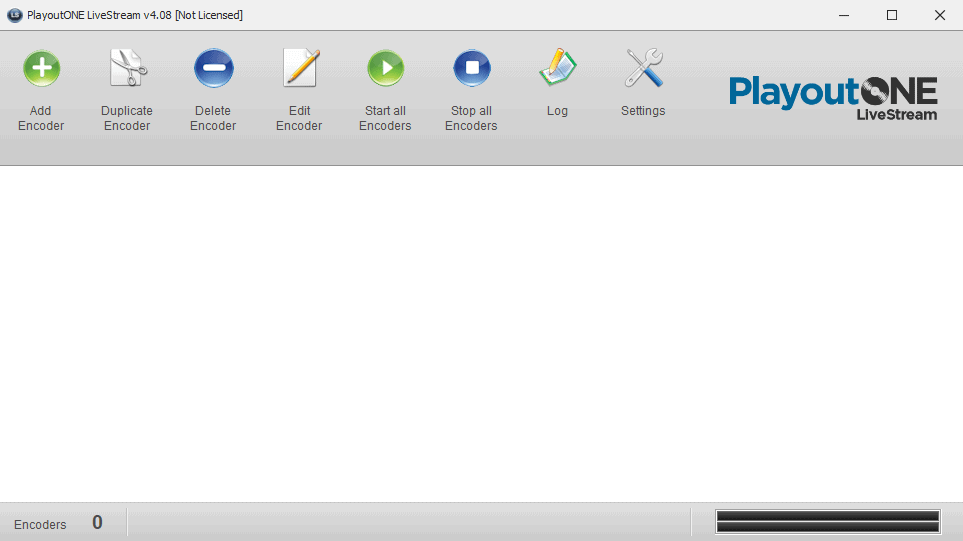
- Click Add New Encoder -> Server Details.
You'll need your connection details from Studio. On a CloudRadio One station, they are on the Live DJ page under Manual settings. See Broadcasting Live.
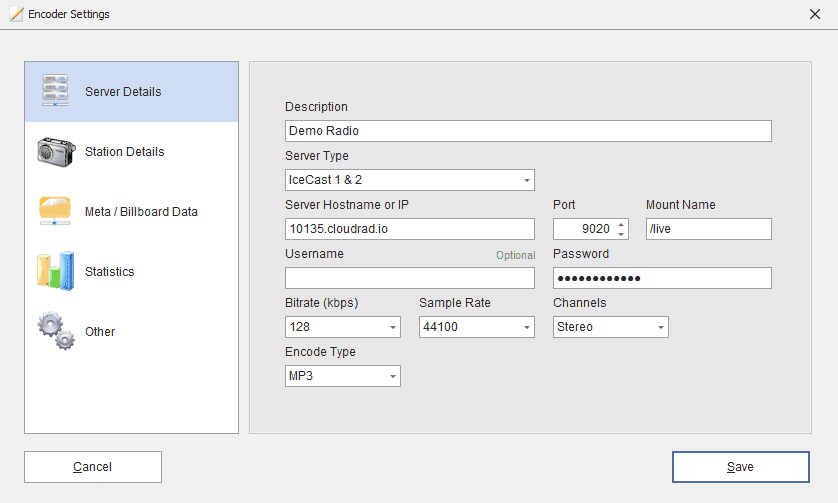
Enter server details
Choose Icecast as the server type and enter the Server, Port, Mount path, Username (source) and Password from the Live DJ page. CloudRadio One only accepts Icecast input. On a Shoutcast or Icecast hosting radio, match the server type of your radio instead.
For the audio, the Live DJ page recommends 256 kbps AAC, or 320 kbps MP3 if you prefer MP3. LiveStream offers both.
Audio & Metadata settings:
- Confirm that you have entered correct details and click Save.
- Back in the main window, select Settings -> Audio & Meta.
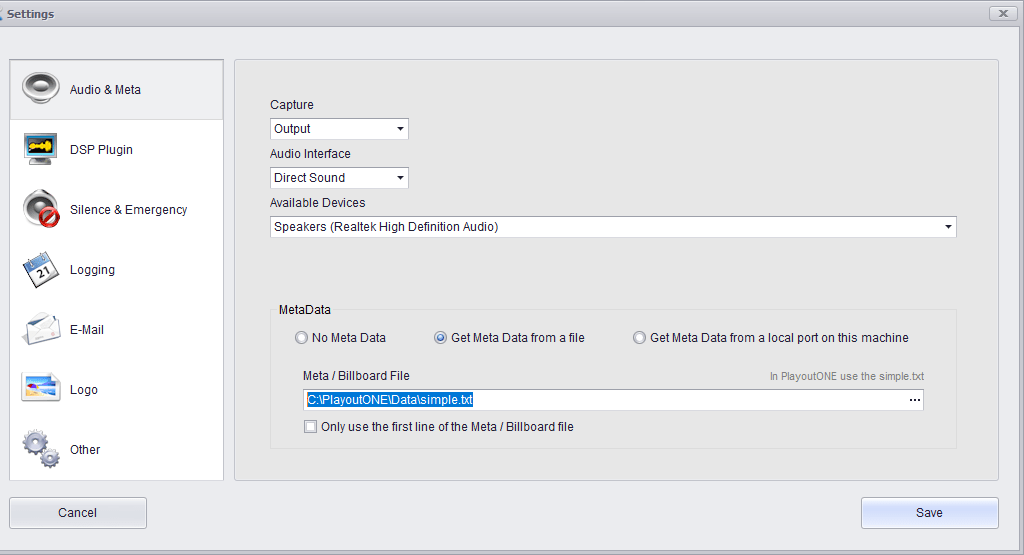
For the Meta/Billboard File, make sure the file path is as shown above. You can also change your audio capture (output or input) to fit your hardware setup.
- Next, click Save.
- To start streaming, toggle your encoder ON.

Start broadcasting
On the main program, import music tracks using the Media Finder (+ allows you add one file ++ lets you add folders and subfolders).
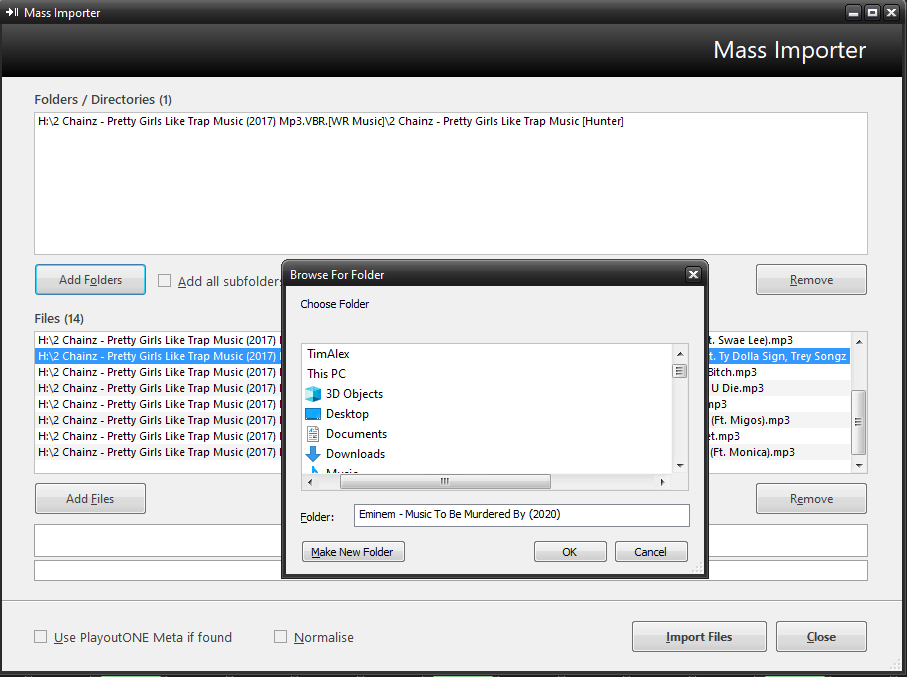
During the importation, the program will analyze the waveforms. So, if you're importing a lot of files, it might take some time. You can build a playlist by dragging songs to the hour segments.
If you have any questions, head over to the AIIR support page.
Need an alternative to PlayoutONE? Explore over 20 radio automation, DJ, and encoder programs on our broadcast software guide.