Some broadcasting software and DJ apps don't include a built-in encoder. To stream their audio to your CloudRadio server, you need to route the audio through an encoder like BUTT or Altacast.
This guide covers two methods for capturing system audio on Windows and sending it to your encoder.
Stereo Mix
Stereo Mix is a virtual recording device built into Windows that captures all audio output into a single signal. It's the simplest option when available.
Limitations: Stereo Mix captures everything, including system notification sounds. Turn off notifications before broadcasting. Not all audio drivers include Stereo Mix, especially on newer hardware or Windows 11.
Enable Stereo Mix
- Open Settings and search for Sound settings
- Scroll down and select Sound Control Panel (or open it from Control Panel > Sound)
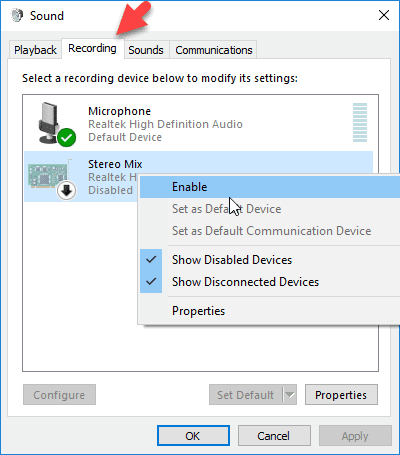
- Go to the Recording tab
- Right-click anywhere in the device list and check Show Disabled Devices
- Right-click Stereo Mix and select Enable
If Stereo Mix does not appear even after showing disabled devices, your audio driver doesn't support it. Skip to the VoiceMeeter method below.
Select Stereo Mix in BUTT
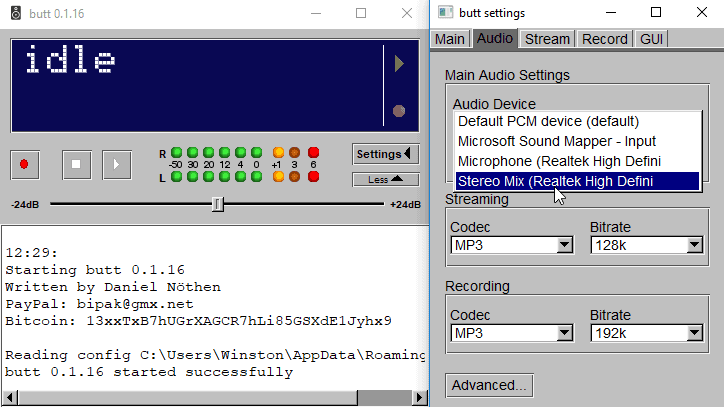
- Open BUTT and go to Settings > Audio
- Set the Audio Device to Stereo Mix
- Play audio from any application on your PC
- The volume meter in BUTT should show activity
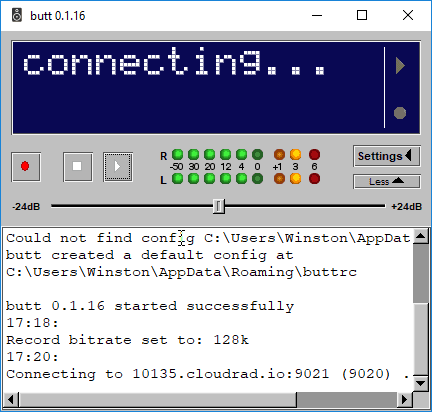
Click the play button in BUTT to start broadcasting. The status bar shows the stream duration once connected.
VoiceMeeter
VoiceMeeter is a free virtual audio mixer by VB-Audio that creates virtual inputs and outputs on Windows. It works on every system, even when Stereo Mix is unavailable.
VoiceMeeter comes in three editions. VoiceMeeter Banana (free, donationware) is the recommended version for broadcasting. It supports 3 hardware inputs, 2 virtual inputs, and 3 outputs.
How it works
- Windows sends all audio to a VoiceMeeter virtual input
- VoiceMeeter mixes the audio and routes it to a virtual output
- BUTT reads from that virtual output and streams it to your server
Set Windows audio output
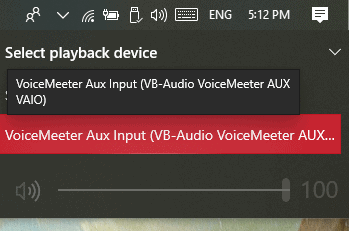
- Click the speaker icon in the taskbar
- Select VoiceMeeter Input as the playback device
All system audio now flows into VoiceMeeter.
Configure VoiceMeeter
- Open VoiceMeeter Banana
- In the Hardware Out section (top right), select your speakers or headphones so you can monitor the audio
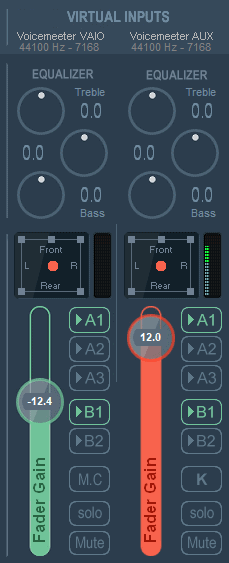
The volume meters in VoiceMeeter should show activity when you play audio from any application.
Select VoiceMeeter output in BUTT
- Open BUTT and go to Settings > Audio
- Set the Audio Device to VoiceMeeter Output (try both Output and AUX Output to find the active one)
- The volume meter in BUTT should match the activity in VoiceMeeter
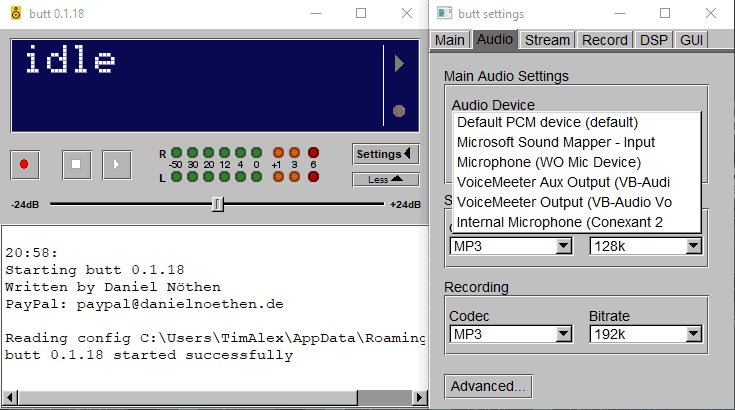
Configure your server connection in BUTT, then click play to start streaming.
Which method to use
| Stereo Mix | VoiceMeeter | |
|---|---|---|
| Availability | Depends on audio driver | Works on all Windows systems |
| Setup | Enable one setting | Install software and configure routing |
| Volume control | Windows mixer only | Per-source mixing, EQ, compression |
| Monitoring | Through normal speakers | Configurable hardware output |
| Best for | Quick, simple setups | Reliable routing or multi-source mixing |
If you just need basic audio capture and Stereo Mix is available, use it. If you need reliable routing that works on any system, or want per-source volume control, use VoiceMeeter.
Troubleshooting
No audio showing in BUTT
- Confirm the correct input device is selected in BUTT's audio settings
- Play audio from any application and check VoiceMeeter's volume meters first
- Restart BUTT after changing the audio device
VoiceMeeter audio is distorted or delayed
- Open VoiceMeeter's Menu > System Tray and set it to run at startup so the virtual devices initialize early
- In Menu > Audio Engine, try switching the buffering mode or increasing the buffer size