Learn how to broadcast using Winamp with the SHOUTcast DSP plugin. All the instructions and direct download links available.
Software information
Platform: Windows
License: Free
Server type: SHOUTcast 2 & SHOUTcast 1.
Download Link:
Winamp: Download
DSP (plugin): Download
Overview
It’s a popular plugin that enables you to stream from your Winamp media player. You can also choose your soundcard as your preferred input device.
Key features
- You can set up multiple output streams.
- It allows you to capture audio from other applications in addition to Winamp.
- Users have reported that it is stable with no issues.
- It works with Winamp on the most popular media player program that comes with many other features.
Connect to your server
Install Winamp and Shoutcast DSP
You'll first have to download and install Winamp if you don't have it set up. Note that you can install Winamp on MacOS, but the streaming plugin works with Windows only.
- Download both programs (Check out the second download link above)
- Run the Winamp installer until you run into this page.
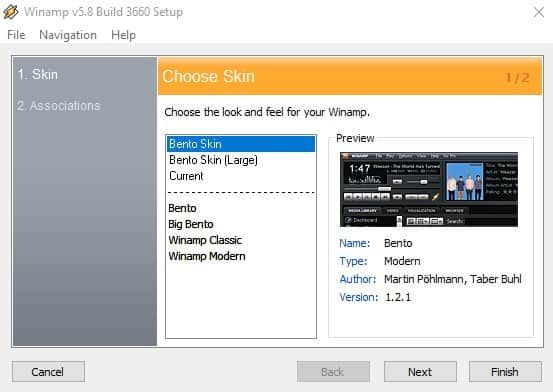
- You can launch the program to see the first look.
- Next, run the Shoutcast DSP installer. It will request you to close all instances of Winamp if you have any running.
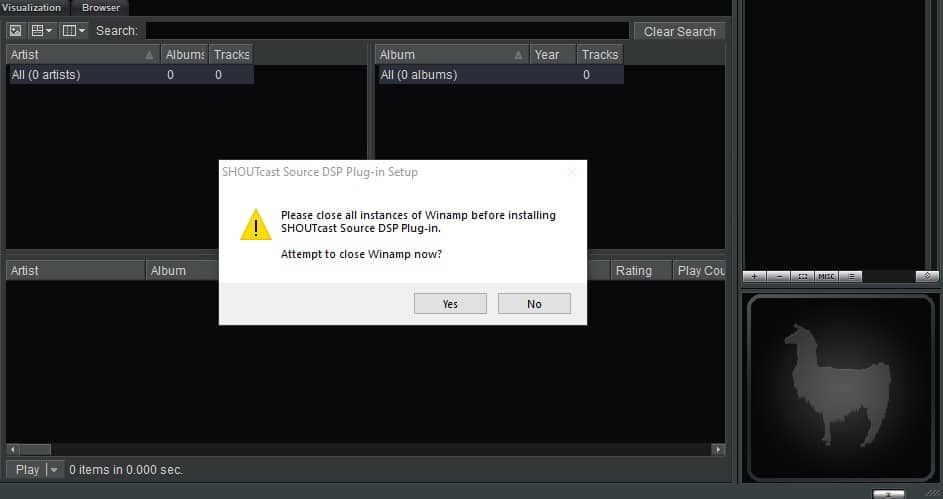
Configure the encoder
- After installing the Shoutcast dsp plugin, go ahead and relaunch Winamp.
- Access the settings page: From the main menu choose Options > Preferences > Plugins > DSP/Effect
- Select the Shoutcast Source DSP > Configure Active Plug-in
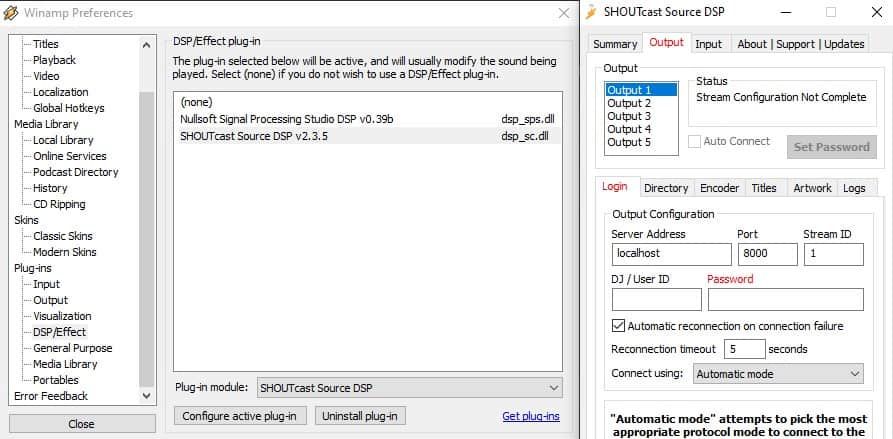
You'll need your connection details from Studio. See Broadcasting Live for where to find your server address, port, mount point, username, and password.
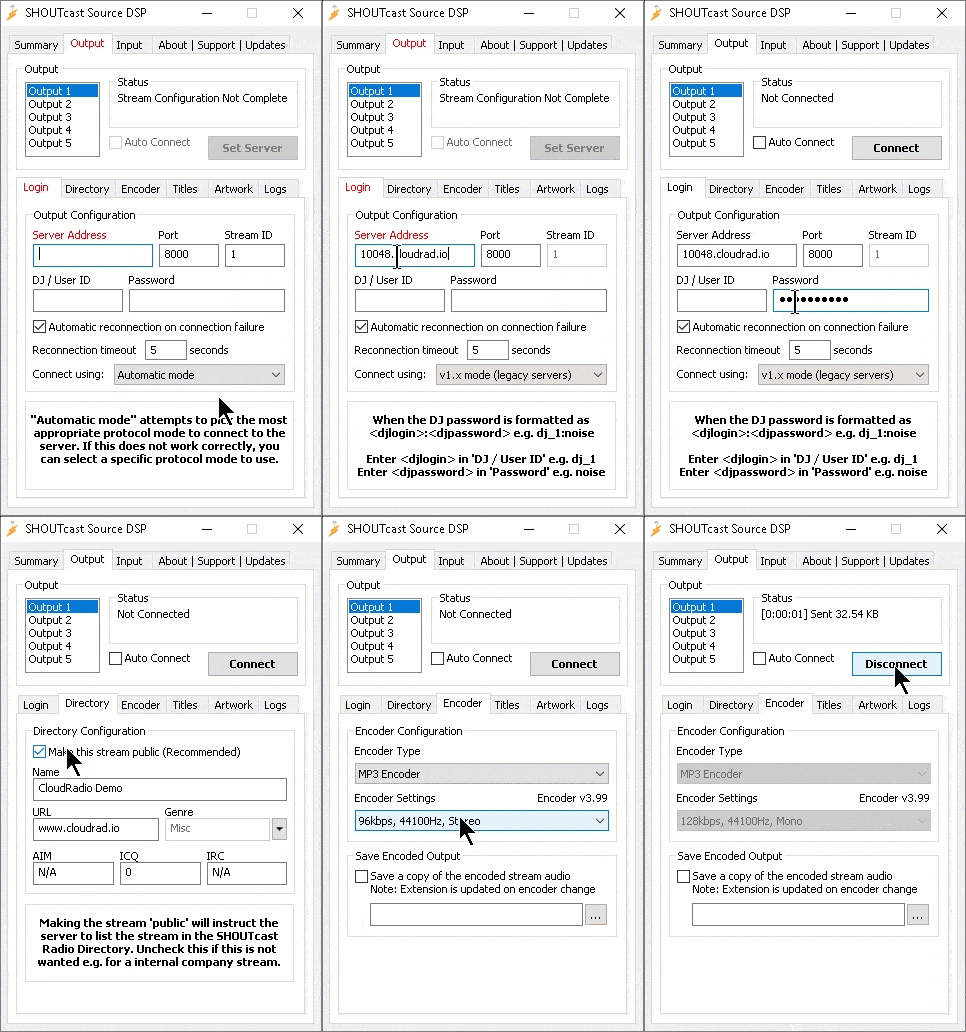
Enter server details
Enter the values from Studio into the corresponding fields in the encoder. Match the server type (Icecast or Shoutcast) to your radio's configuration.
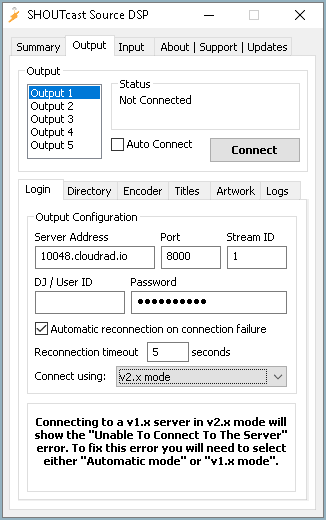
Audio Streaming Settings
On the SHOUTcast Source DSP, click the Directory tab and input your radio information.
Select the Encoder tab to set Encoder Type to MP3.
Then, in Encoder Settings select the bitrate. For music, we recommend 128kbps or more and stereo.
Start broadcasting
- Select Connect to start sending audio to your streaming server.
- Load music in Winamp, create playlists, add online sources, and start broadcasting.
Need an alternative to Winamp SHOUTcast DSP? Explore over 20 radio automation, DJ, and encoder programs on our broadcast software guide.
We offer an excellent hosting option with a fully customizable price. Get started easily.
CloudRadio One gives you AutoDJ, 750 GB storage, and unlimited listeners for $39/mo.