Learn how to set up Edcast with Winamp for your streaming server. While this version is free to use, it's been replaced with Altacast.
Software information
Platform: Windows only
License: Free
Server type: Icecast, SHOUTcast 2 & SHOUTcast 1
Download Page: Edcast DSP Plugin
Overview
Winamp is an audio player for macOS, Windows, and Android.
Edcast was an open-source audio encoder. The project was later replaced with Altacast. Broadcasters used Edcast as a standalone encoder, and the encoder's DSP still works with Winamp.
You can still find versions of the Edcast Winamp plugin online.
Key features
Winamp supports an extensive collection of plugins, including the Shoutcast DSP. However, it can't stream to an Icecast server.
By using the Edcast DSP, you can stream audio straight to your Icecast or Steamcast broadcasting server.
Both options represent a cost-free way to start broadcasting straight from your computer without the need for expensive radio automation software.
If you are looking for a solution on how to use Icecast with Winamp, read on to find out.
Connect to your server
Install Winamp and Edcast
Download link for Winamp. Download for Winamp Edcast DSP.
You can also use the DJLab Edcast download link.
- Open the Winamp download to run the setup wizard.
- Select the default options.
- Once you are finished configuring Winamp, just launch it.
You will need to configure the skin and file associations:
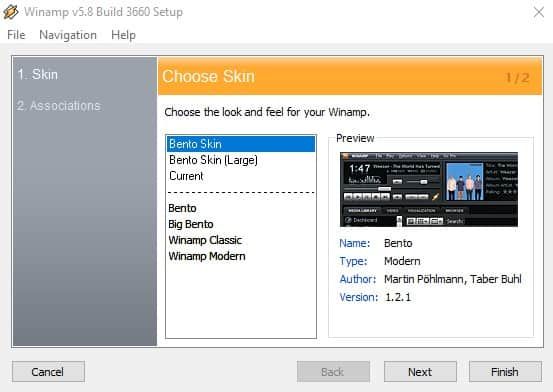
Configure the encoder
- Open the setup file and install Edcast in the same folder as Winamp.
You will need the lame_enc.dll file to stream in the MP3 codec.
- Download the Lame 3.100 here. Extract the lame_dll file and copy it to the Winamp folder.
- For AAC support, download the libFAAC dll for Win32
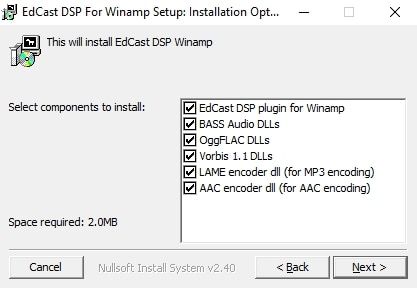
Connect to streaming server
- Select Options > Preferences > DSP/Effect.
- Select the Edcast plug-in and configure active plug-in.
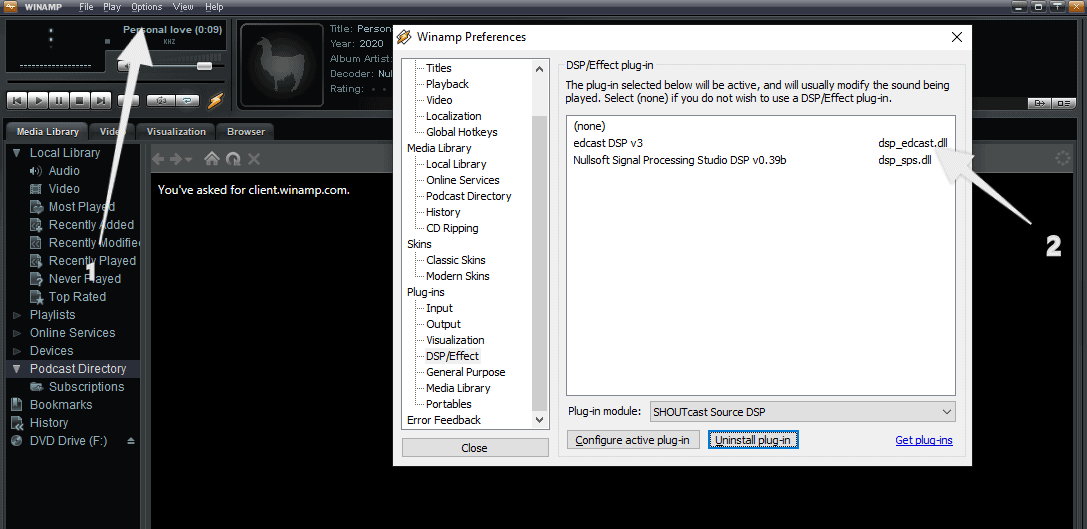
You'll need your connection details from Studio. See Broadcasting Live for where to find your server address, port, mount point, username, and password.
Enter server details
Enter the values from Studio into the corresponding fields in the encoder. Match the server type (Icecast or Shoutcast) to your radio's configuration.
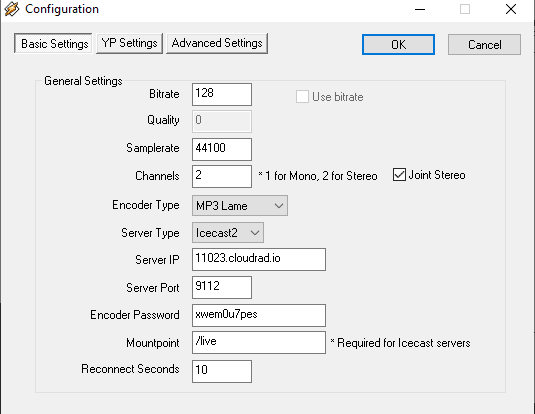
Select OK and Connect.
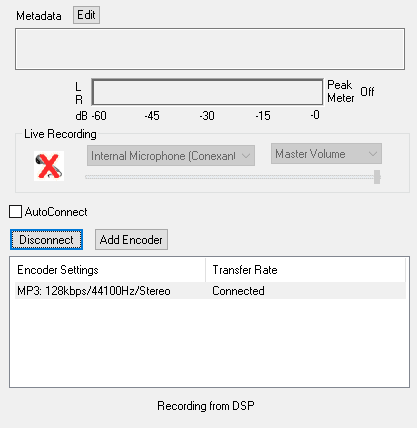
The plugin will capture sound from the DSP. You'll not need to configure the audio capture settings.
Start broadcasting
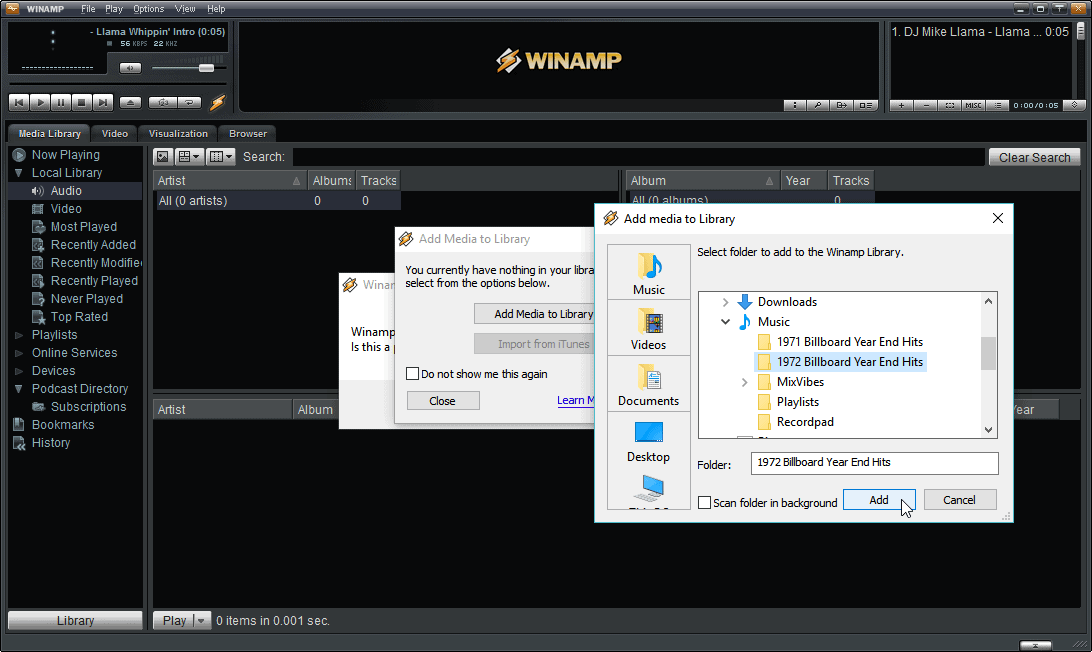
If you have not added media to your Library, you can go ahead and add them. Winamp also allows you to add media from other sources.
Need an alternative to Winamp Edcast? Explore over 20 radio automation, DJ, and encoder programs on our broadcast software guide.