Learn how to set up RadioCaster from RadioBOSS with your broadcasting server. Download links and all the instructions included!
Software information
Platform: Windows
Licence: Commercial
Server type: SHOUTcast 2, SHOUTcast 1, Icecast
Download Page: https://www.djsoft.net/enu/radiocaster_details.htm
Price: $49
Overview
RadioCaster is a program by DJSoft.Net which also distributes RadioBOSS - a radio automation software. With RadioCaster, you capture any audio from your sound card, network stream or from playback devices like your speaker.
You can create multiple encoders to stream in different formats to your broadcasting server. RadioCaster also retrieves statistics like the number of listeners connected to your stream.
Key features
- Stream in MP3, AAC, OGG, OPUS, WMA without added plugins
- Easy to setup
- Stream statistics
- DSP plugin with compressor and equalizer.
Connect to your server
Install RadioCaster
- Download Radio Caster. (The trial version inserts a tone after a few minutes of use).
- Open the downloaded file to run the setup wizard.
- On the first run, you will need to configure RadioCaster:
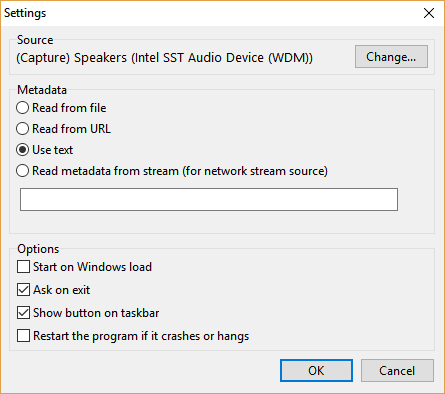
How to use RadioCaster with Radio DJ or with another radio automation program:
- You can capture sound from your output devices such as your speakers. Under Source > Click Change and specify the input source.
- You can choose your Metadata source URL, file or stream. Alternatively, you can update the Metadata manually by selecting Use text.
- Once you're done, click OK.
Configure the encoder
- Click the + (plus) > Configuration Wizard to configure a new encoder.
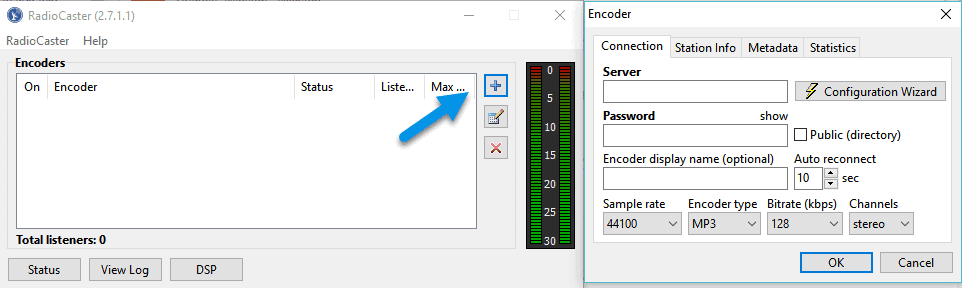
- Select Configuration Wizard.
- Next, choose your server type.
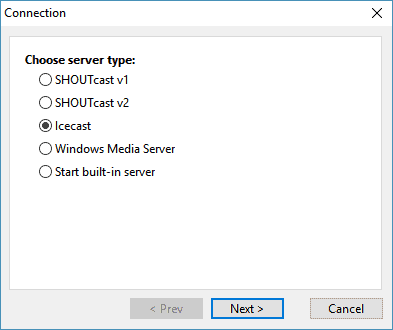
You'll need your connection details from Studio. See Broadcasting Live for where to find your server address, port, mount point, username, and password.
Enter server details
Enter the values from Studio into the corresponding fields in the encoder. Match the server type (Icecast or Shoutcast) to your radio's configuration.
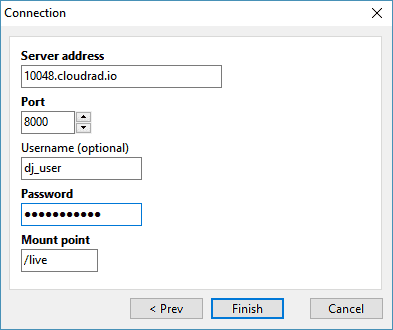
- Click Finish.
- You can change the Encoder Type and Bitrate. (We recommend 128 Kbps for MP3 or 64 Kbps for AAC).
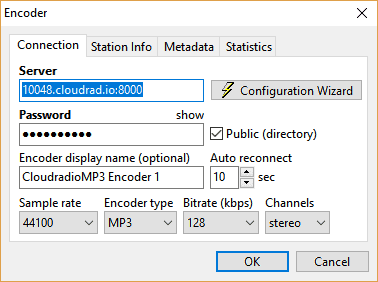
- You can also update your Station Info, Metadata source and Statistics.
- After you're done, click OK.
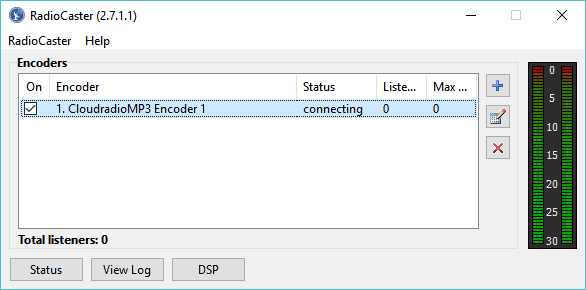
Start broadcasting
- Open your media player or radio automation software and play your music.
- Listen to your stream by opening Listen > Player > Preview (Demo scripts)
- Tip: You can change skin by clicking RadioCaster>Style.
Need an alternative to RadioCaster? Explore over 20 radio automation, DJ, and encoder programs on our broadcast software guide.
We offer an excellent hosting option with a fully customizable price. Get started easily.
CloudRadio One gives you AutoDJ, 750 GB storage, and unlimited listeners for $39/mo.