As a robust playout and automation software, Myriad 5 has all the tools to run your internet radio, FM, or HAM station. The software is banked on over 20 years of broadcast experience.
Learn how to install the program and configure its encoder to work with your broadcast server.
Software information
Platform: Windows
License: Paid With Free 30 day Trial
Server type: Comes with a standalone encoder (Pro version supports Shoutcast & Icecast)
Trial Download Page: https://www.broadcastradio.com/myriad-5-playout-support
Overview
Myriad 5 Playout is a radio automation and playout system. It's created to handle all broadcast scenarios.
Broadcast Radio (the company behind the software) has more than two decades of experience developing broadcast software solutions.
Myriad 5 Pro was recently built from scratch for better stability and equipped with modern features.
It uses an entirely new programming language and code-base and was preceded by the popular Myriad 4 Playout System.
Key features
Myriad 5 Playout has standout tools guaranteed to make your station great! With its wide array of key functionalities, it's ideal for web radio broadcasters and commercial stations.
Many radio stations in the UK use the program.
Some of the aspects of the program we like include:
- SmartInfo Panel: It dynamically provides information about the song and artist, helping you create well-informed links between songs. You get a view of the artist's Wikipedia page and twitter feeds.
- Multiple Layout Options: With multiple screen layouts, you can adapt the program to different screen setups, including touch screens and pads.
- Handy voice recorder: Located on the bottom toolbar, the voice recorder gives you the ability to record voice tracks and insert them into the media wall with ease.
- Remote voice tracking: Have live access to your Myriad 5 playout system and remotely add voice tracks.
- Powerful segue editor: You can use it to edit intros, outros, etc. You can visualize waveforms.
- AutoHooks: The system can create automatic hooks of scheduled items.
Connect to your server
Install Myriad 5
- Launch the download page.
- Download and run the .exe installation file.
- Follow the instructions on the setup wizard.
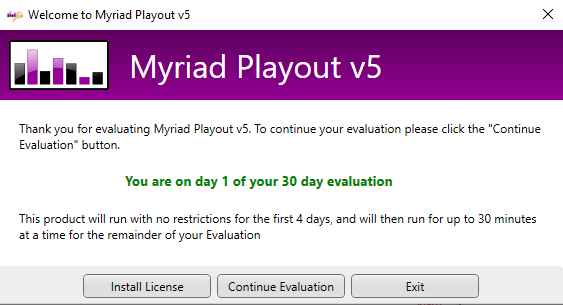
- Don't have a license? Well, select Continue Evaluation.
On the trial version, you get 30 days to evaluate the program. For the first 4 days of your evaluation, there are no restrictions whatsoever. Afterward, the program runs for 30 minutes before shutting down.
The first thing you'll love about the program is that it gives you a simple setup wizard that walks you through the initial configuration.
Install SQL Express
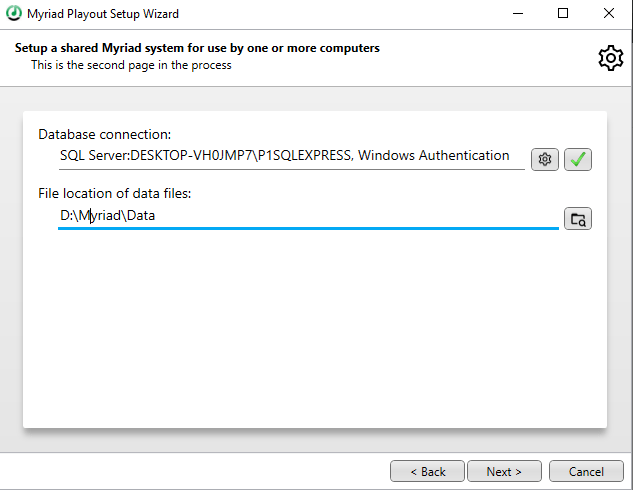
Myriad 5 requires an external database to store its files, media wall settings, user profiles, etc. The recommended database is Microsoft SQL. You can download the Express Version for free.
Now, without having a database running in the background as a process, you'll receive an error when trying to create a new database.
- Download Microsoft SQL Server setup wizard here.
- Open and run the setup file.
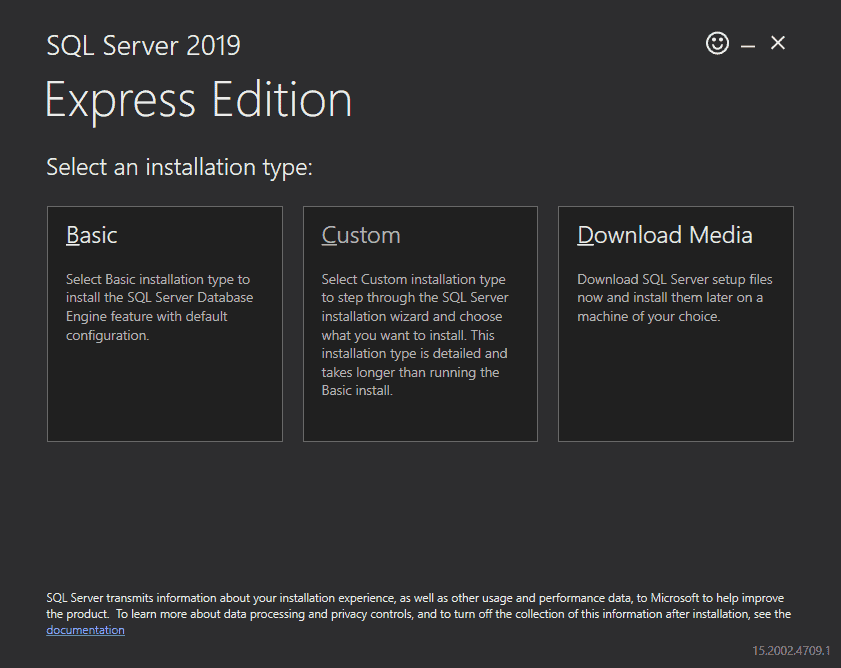
Here is the installer that comes with Microsoft SQL. Choosing the Basic installation is advised.
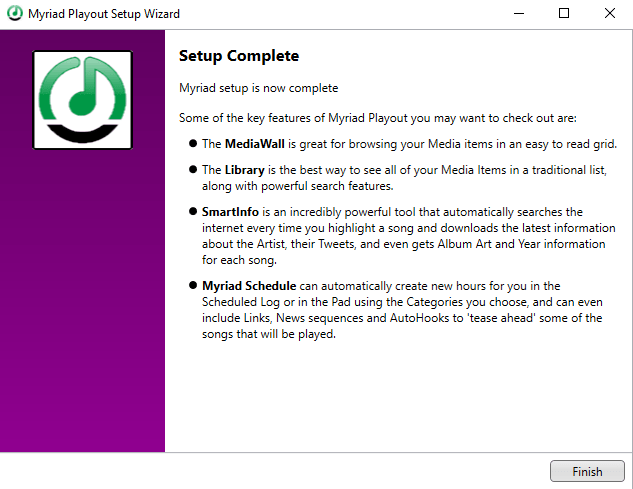
Myriad can be configured for a single user on a single machine. It's also flexible in that it can work across a shared network.
Configure the encoder
The Myriad 5 Playout system comes with automation and playback tools. It lacks an integrated encoder.
Broadcast Radio offers a standalone encoder, the BR Encoder. It seamlessly integrates with Myriad 5 and provides special features, including:
- Runs as a service: If you close the encoder, it still runs as a Windows Service.
- Password protection: Set a password for functions such as starting or stopping the encoder.
- Automatic Now Playing info: Get the info from Myriad 5 or with other radio automation programs.
- VST Plugin Support: Use your favorite audio plug-in software to emulate the great sound of commercial radio.
The BR Encoder V1 has two versions: Standard and PRO. The Standard Version is meant for users hosting their radio stations at Broadcast Radio.
It's free to download. And here are the steps to download the program:
- Get the program from its installation page here.
- Unpack the zip and open the .exe file.
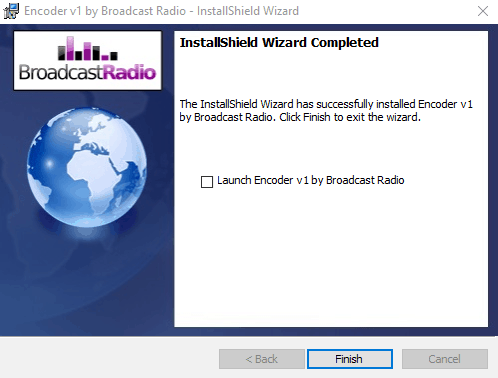
- Follow the instructions on the wizard and launch the encoder.
If you want to set up the BR Encoder with your CloudRadio settings, you'll need to upgrade to the PRO version. The upgrade will set you back £49.99 + VAT.
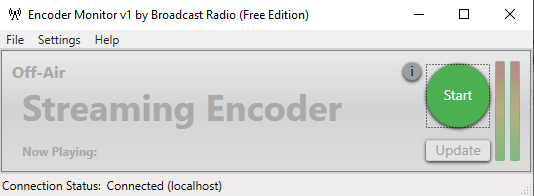
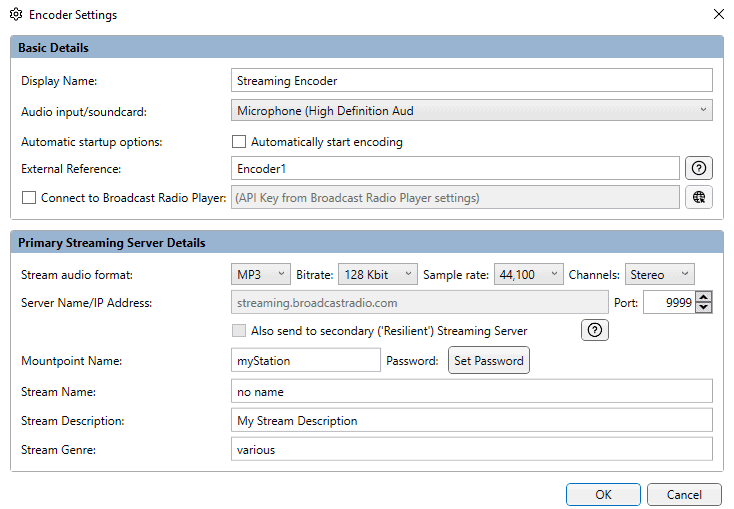
Configuring the encoder with your server settings is straightforward. Select Settings > EncoderServer Settings.
For more tips on using the BR Encoder with Myriad 5, reference the comprehensive user guide.
You'll need your connection details from Studio. See Broadcasting Live for where to find your server address, port, mount point, username, and password.
Enter server details
Enter the values from Studio into the corresponding fields in the encoder. Match the server type (Icecast or Shoutcast) to your radio's configuration.
Use BUTT or Altacast
The walk-around we recommend involves pairing Voicemeeter with Altacast, BUTT, or other standalone encoders.
That's because you can create virtual inputs and outputs, and route sound directly from Myriad 5 to the encoder. Here is the tutorial you can use to setup Voicemeeter + BUTT.
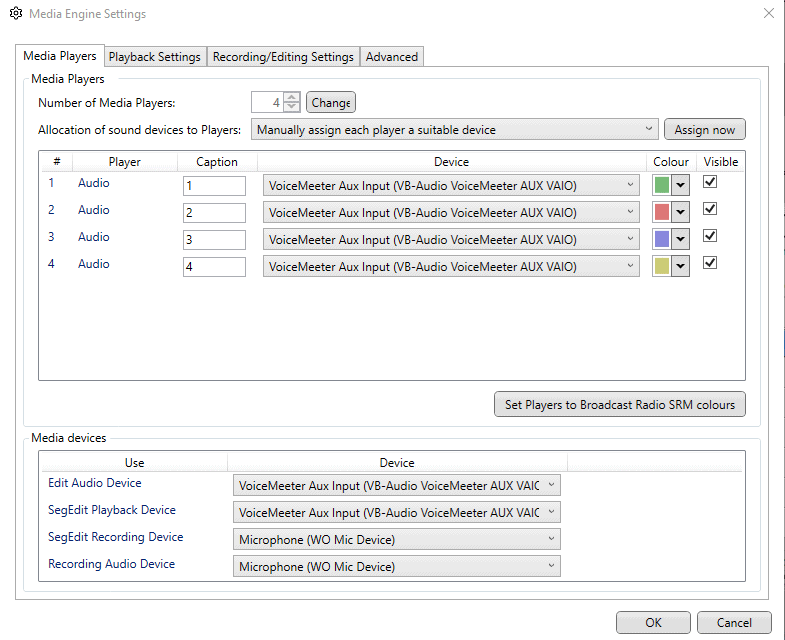
You can edit output devices in Myriad 5 as follows:
Start broadcasting
The next step is learning how to use the program. Its rich features can automate your radio and make it sound professional. We recommend these resources for beginners:
- Myriad 5 Playout - Official Tutorial Course
- 2020 Official Myriad 5 Playout - Training Course
- Myriad Playout V5 - First Look
Need an alternative to Myriad 5? Explore over 20 radio automation, DJ, and encoder programs on our broadcast software guide.