Learn how to set up mAirList with your Icecast or SHOUTcast broadcasting server.
Software information
Platform: Windows only
License: Commercial (from $375)
Server type: SHOUTcast & Icecast
Download: https://www.mairlist.com/en/download/
Overview
mAirList is an advanced radio automation software. It has all the relevant features including cartwalls, events scheduler, recorder, voice-tracking, and more. In this tutorial, you will learn how to set up the built-in encoder.
Key features
In addition to the wide array of advanced features, we liked that it is highly customizable. Its other pros, include:
- Simple to use voice-tracking.
- Intuitive interface.
- Has a built-in database (mAirListDB).
- It supports other third-party databases.
Connect to your server
Install mAirList
- Download and open the .exe file to run the setup wizard.
- After the installation, you’ll see an error window. It is normal. You’ll need to activate the trial license.
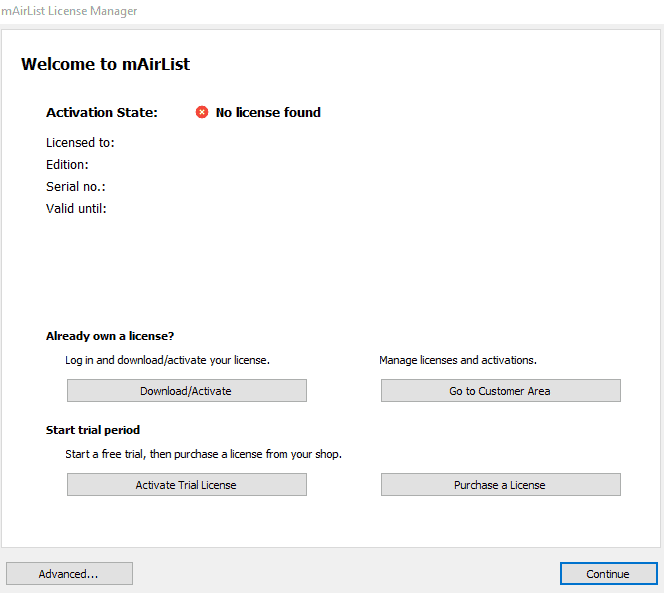
- Select Activate Trial License.
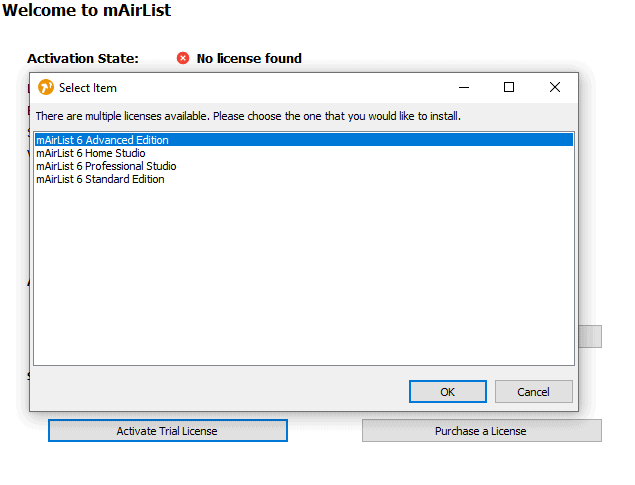
You will see that the license has been installed successfully. Close this window, and relaunch mAirList.
Configure the encoder
Next, we need to set up the encoder:
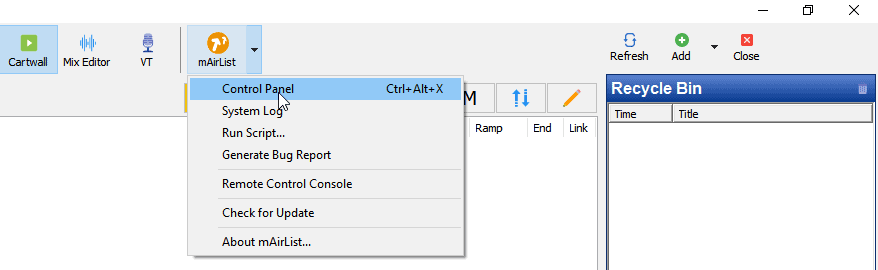
- Select mAirList> Control Panel.
- Next, select Encoder > Add.
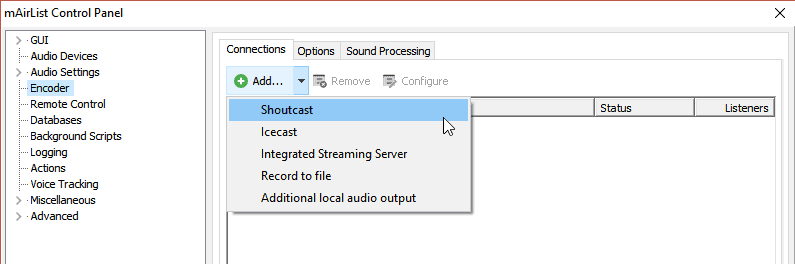
You’ll need your connection details from Studio. See Broadcasting Live for where to find your server address, port, mount point, username, and password.
Enter server details
Enter the values from Studio into the corresponding fields in the encoder. Match the server type (Icecast or Shoutcast) to your radio’s configuration.
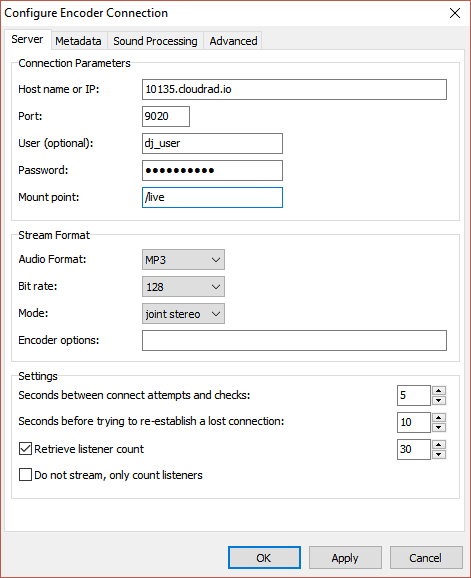
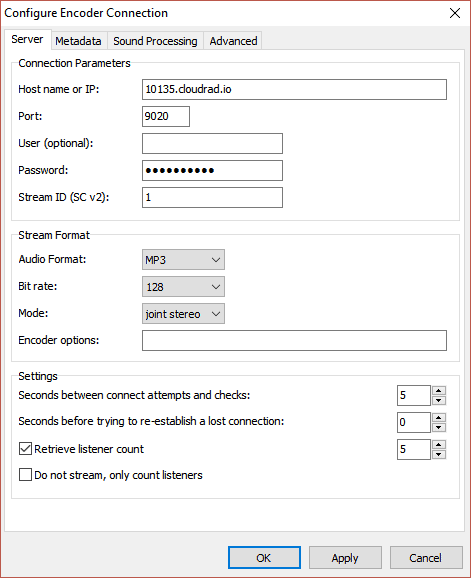
- Click Apply > OK to start streaming.
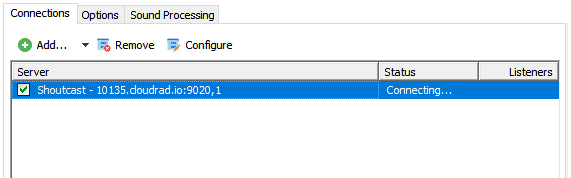
You should see that mAirList is attempting to establish a connection:
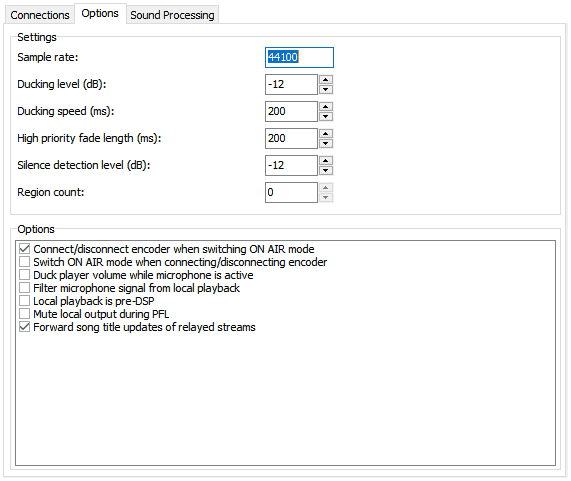
You can also specify how the encoder connects to the broadcasting server:
In the encoder tab:
- Select Options.
- Then, set your options and click OK.
Start broadcasting
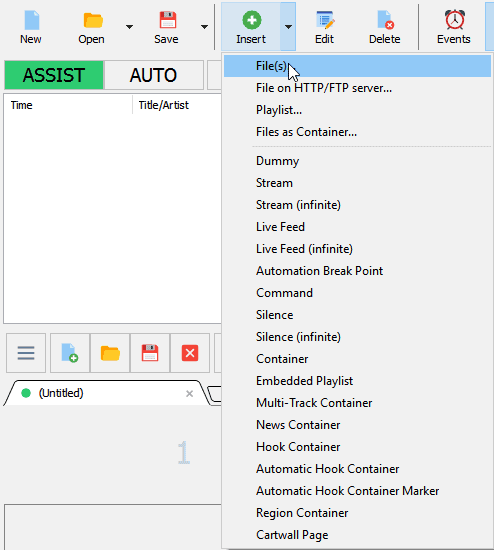
We need to add tracks into the Playlist:
- Select Insert>File(s).
To start playing music in automation mode:
- Select AUTO > Play button.
If you have any questions, head over to the mAirList Support Page.
Need an alternative to mAirList? Explore over 20 radio automation, DJ, and encoder programs on our broadcast software guide.