RadioDJ is free radio automation software for Windows. Current versions have no built-in streaming encoder, so you send its audio to an encoder such as BUTT, which streams it to your station.
Software information
Platform: Windows only
License: Free
Server type: Needs an external encoder
Download page: https://www.radiodj.ro/download/
How it fits together
- RadioDJ plays your music and automation.
- VoiceMeeter, a virtual audio mixer, carries RadioDJ's output to BUTT.
- BUTT encodes the audio and streams it to your CloudRadio station over Icecast.
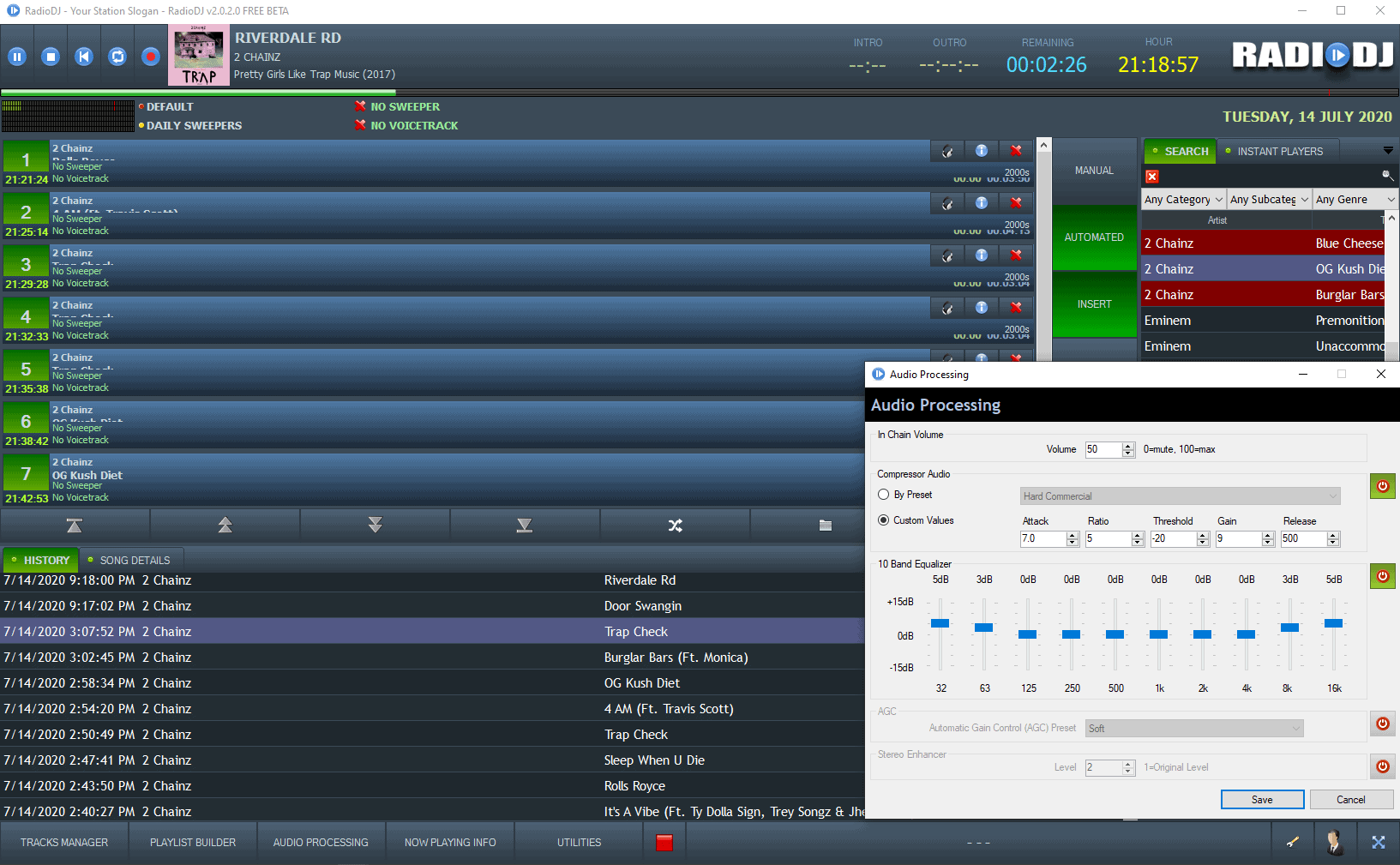
Install RadioDJ
- Download RadioDJ from radiodj.ro and run the installer.
- RadioDJ stores your library and settings in a MySQL or MariaDB database. Use the Database Setup Utility from the same download page to create it.
- Open RadioDJ, add your music with the Tracks Manager, and check that it plays.
Route the audio with VoiceMeeter
- Install VoiceMeeter Banana and restart your computer.
- In RadioDJ's sound card options, set the main output to one of VoiceMeeter's virtual inputs, for example VoiceMeeter Aux Input.
- In BUTT's Audio settings, choose the matching VoiceMeeter output as the audio device. BUTT's level meter moves when RadioDJ plays.
For more on VoiceMeeter, see Windows Audio Routing.
Connect BUTT to your station
Get your connection details from Studio. On a CloudRadio One station, they are on the Live DJ page under Manual settings. See Broadcasting Live.
In BUTT, add a server with:
- Type: Icecast. CloudRadio One only accepts Icecast input, not Shoutcast.
- Address, Port, Password, IceCast mountpoint and IceCast user: the Server, Port, Password, Mount path and Username (
source) from the Live DJ page.
For the stream, the Live DJ page recommends 256 kbps AAC, or 320 kbps MP3. On a Shoutcast or Icecast hosting radio, match the server type of your radio instead. The BUTT guide walks through each setting.
Send the song titles
RadioDJ can write the playing song to a text file, and BUTT can read the song name from that file:
- In RadioDJ, turn on the now playing text file output and note the file's location.
- In BUTT's Stream settings, point the song name update to that file and activate it.
Listeners then see each song's title and artist.
Need an alternative to RadioDJ? Explore over 20 radio automation, DJ, and encoder programs on our broadcast software guide.