Learn how to broadcast with Sam Broadcaster by connecting the encoder to your Icecast or Shoutcast server.
Software information
Platform: Windows only
License: Trial and Commercial
Server type: SHOUTcast 2, SHOUTcast 1, & Icecast
Download Page: https://spacial.com/download-sam-broadcaster/
Overview
Launched in 2002, SAM Broadcaster has quickly become an established standard automation program used for internet radio broadcasting. Radio stations in over 150 countries rely on the program's capabilities, which are plentiful and powerful. You can download and install the program on your computer, but they also offer a cloud-based version provided as a service.
Key features
SAM offers all the features you'll require to automate or manually control your station. Besides its long history of use, its standout features include:
- Advanced audio processor
- Event Scheduler
- Queuing
- Voice FX
- Played tracks history
- Statistics
- Crossfader
- Three working tabs (Desktop A, B, C)
Connect to your server
Install SAM Broadcaster
- Get a free 14 days trial here. Or buy the software here.
- Open the downloaded .exe file to run the setup wizard.
- With Sam Broadcaster Pro 2020, you can easily choose to install Firebird.
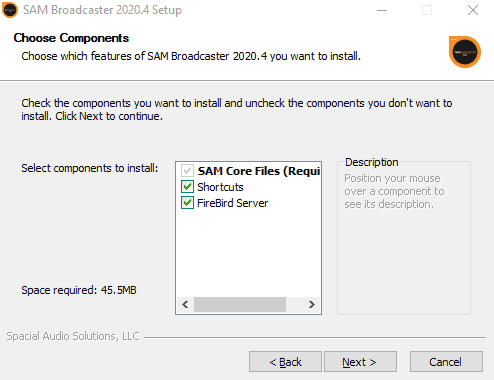
By choosing FireBird, you'll not have to download additional databases such as MySQL, PostgreSQL, or MS SQL.
The first look:

Configure the encoder
Luckily, Sam Broadcaster comes with a built-in encoder. You need to configure it with your broadcasting server:
- On SAM's top toolbar, click Desktop B
- Under Encoders click (plus) to add a new encoder
- Select plugin "MP3 (LAME_ENC)" or "MP3 (Normal)".
- Click OK
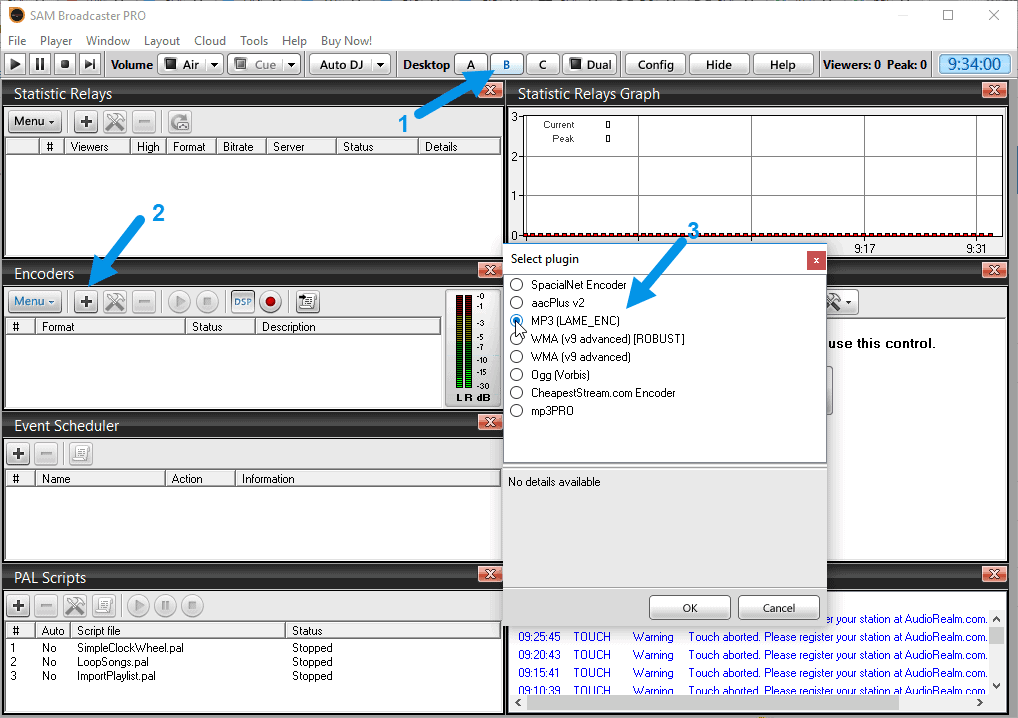
It launches a new settings window:
- On the Converter tab, set the Bitrate: You'll get a good sounding stream with a bitrate setting of 96Kbps to 320 Kbps MP3. With AAC+, the bitrate can be as low as 64kbps.
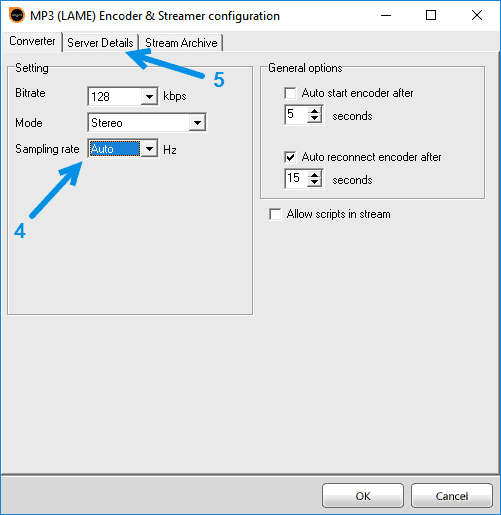
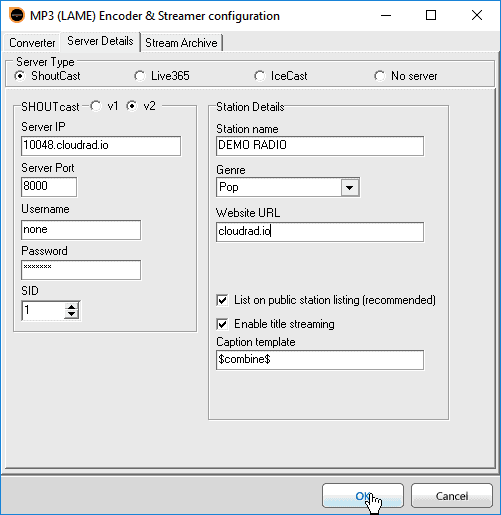
- Then, click the Server Details tab.
You'll need your connection details from Studio. See Broadcasting Live for where to find your server address, port, mount point, username, and password.
Enter server details
Enter the values from Studio into the corresponding fields in the encoder. Match the server type (Icecast or Shoutcast) to your radio's configuration.
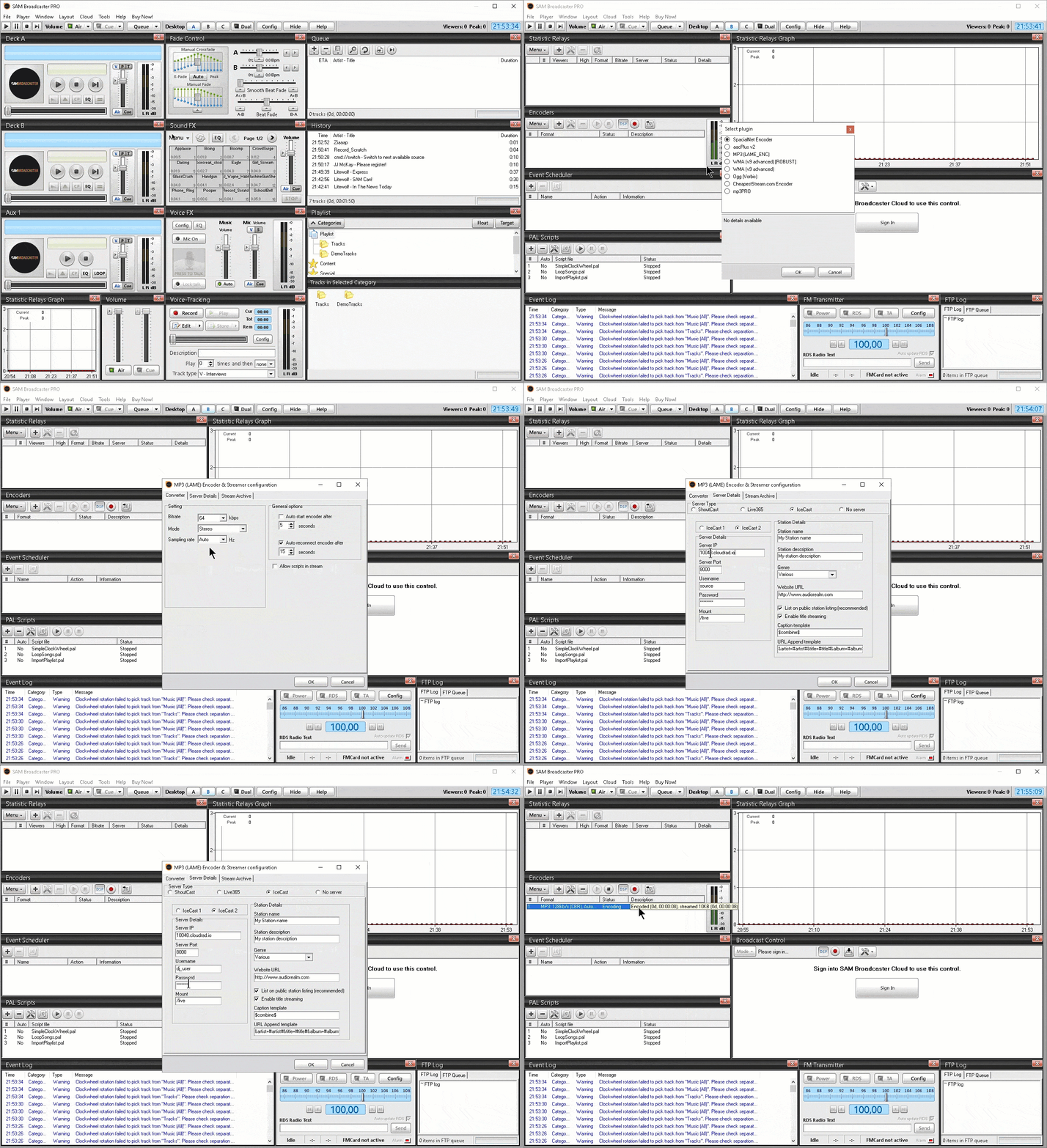
Start broadcasting
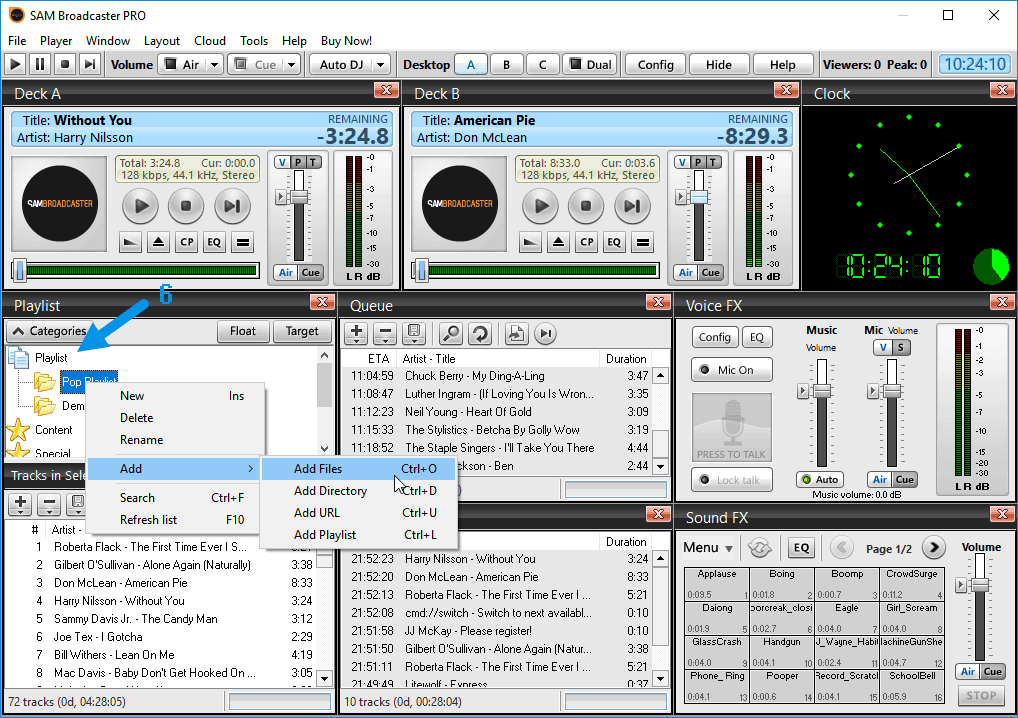
You'll find creating playlists and importing tracks into SAM easy and intuitive. It's also possible to drag tracks into the queue from your file explorer. Create a playlist by selecting:
- Categories -> Playlist -> Create a New Playlist.
- Right-click your new playlist -> Add -> Add Files..
- Add your playlist to the queue and click Play.
Learn how to use the software by consulting Spacial's knowledgebase.
Need an alternative to SAM Broadcaster? Explore over 20 radio automation, DJ, and encoder programs on our broadcast software guide.