Learn how to setup your broadcasting server with SAM Cast developed by Spacial. All the instructions included and licensing information.
Software information
Platform: Windows
Licence: Commercial
Server type: SHOUTcast 2, SHOUTcast 1, Icecast
Download Page: https://spacial.com/sam-cast/
Price: $199
Overview
SAM Cast is a standalone encoder by Spacial Audio. Sam Broadcaster is one of the best-selling radio automation software.
As a standalone encoder, it captures audio directly from your sound card. It has built-in audio processing, supports streaming to multiple servers simultaneously, and can read metadata from files.
While you can capture sound from a playback device, you can use it along with an audio mixing program like Voicemeeter.
Key features
- Support for streaming in multiple forms such as MP3, AAC+, Ogg, WMA.
- Simple to use.
- Can fetch listener statistics from your broadcasting server.
- Comes with built-in advanced digital signal processing.
The only thing that we don't like is the huge price tag of the program.
Connect to your server
Install SAM Cast
- Download SAM Cast (The trial version runs for 30 days).
- Open the downloaded file to run the setup wizard.
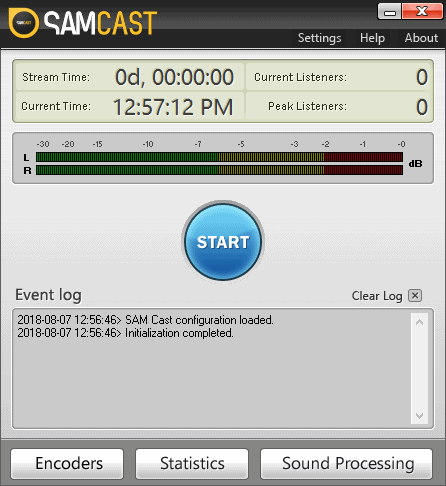
- Launch SAM Cast from your desktop.
Here is the first look:
Configure the encoder
You will need to configure SAM Cast to stream audio to your server.
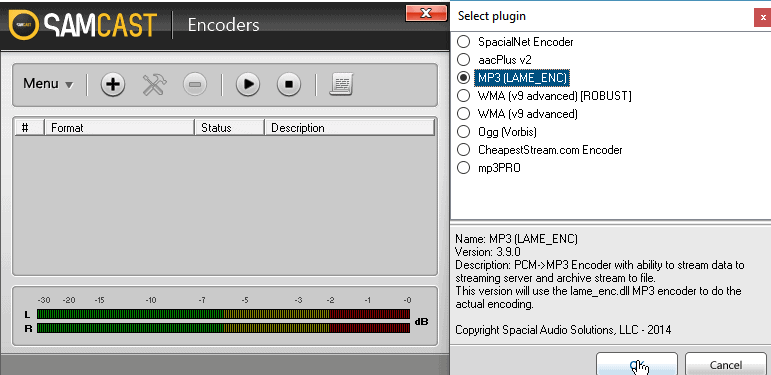
- Click Encoders > + Button.
- Select your audio plugin e.g. MP3 (LAME _ENC) and click OK.
- Ensure that SpacialNet Encoder is not selected before moving to the next step.
- Select the Server Details Tab.
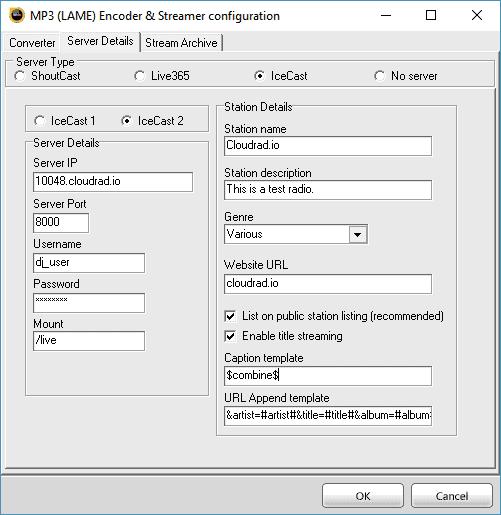
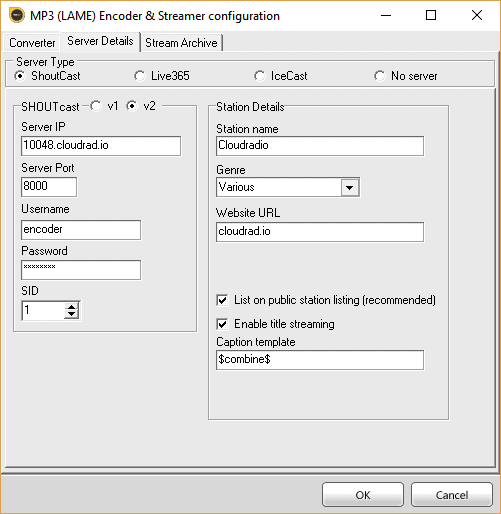
You'll need your connection details from Studio. See Broadcasting Live for where to find your server address, port, mount point, username, and password.
Enter server details
Enter the values from Studio into the corresponding fields in the encoder. Match the server type (Icecast or Shoutcast) to your radio's configuration.
Audio settings
- We recommend MP3 128 Kbps or AAC 64 Kbps.
- You can also amend the auto-reconnect time to 10 seconds or less.
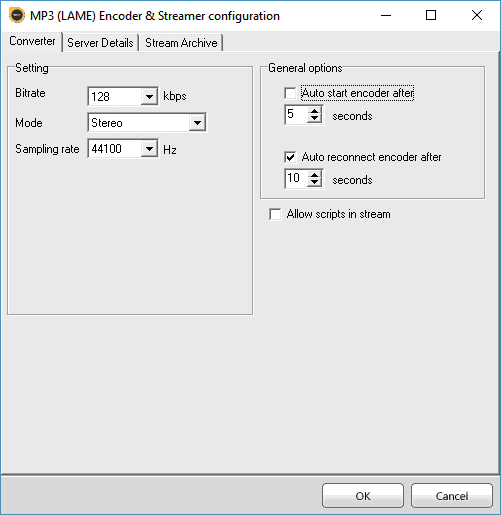
Recording setting:
- Turn on the recording feature by selecting Stream Archive.
- Specify the folder location where the recording will be saved.
- Click OK.
Your encoder will be offline. To connect your server press the play button.
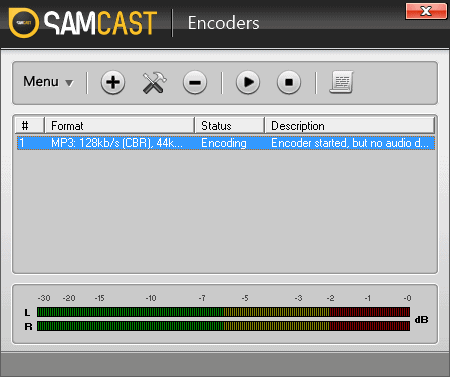
Start broadcasting
Open your media player or radio automation software and play your music.
You can learn more about Sam Cast here.
Need an alternative to SAM Cast? Explore over 20 radio automation, DJ, and encoder programs on our broadcast software guide.
We offer an excellent hosting option with a fully customizable price. Get started easily.
CloudRadio One gives you AutoDJ, 750 GB storage, and unlimited listeners for $39/mo.