
In this Mixxx tutorial, find out how to use it to broadcast to your Icecast, or Shoutcast server.
Many broadcasters use this free and advanced Dj program to create shows and automate radio broadcasting.
Software information
Platform: Windows, Mac OS & Linux
License: Free
Server type: SHOUTcast & Icecast
Download Page: https://mixxx.org/download/
Overview
At its core, Mixxx is a powerful DJing tool available across the major platforms. If you're having a hard time finding a radio automation software for macOS, Mixxx is an excellent alternative.
Mixxx is open-source, and its features are comparable to paid Dj solutions. It also supports a wide array of MIDI and HID controllers.
Key features
It provides a fun way for radio broadcasters to host live shows. They can play music tracks, capture sound from mics, and more. Some of its standout features include:
- Auto DJ
- DJ controller support
- Sound effects
- Beat sync
- Four mixing decks
- Support for a wide range of audio and video formats
- Built-in encoder
- Crossfade control
- Equalization
- Recording and live broadcasting
- Four Mic and Aux inputs
Install Mixxx
In macOS:
- Open the Mixxx.DMG file by double-clicking.
- Drag and drop Mixxx into your Applications folder.
In Windows:
- Open the downloaded .exe file to run the installer.
If you're stuck when installing the program, see the Mixxx manual.
Configure the encoder
In Mixxx, open Preferences > Live Broadcasting.
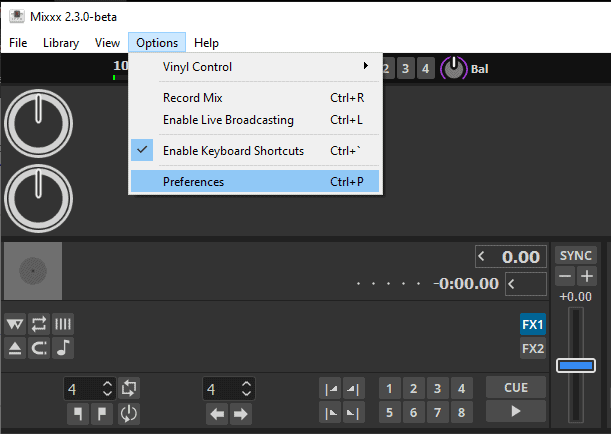
You'll need your connection details from Studio. On a CloudRadio One station, they are on the Live DJ page under Manual settings. See Broadcasting Live.
Enter server details
- Type: Icecast 2. CloudRadio One only accepts Icecast input, not Shoutcast.
- Host: the Server from the Live DJ page.
- Port: the Port.
- Mount: the Mount path, for example
/studio. - Login: the Username,
source. - Password: the Password.
On a Shoutcast or Icecast hosting radio, match the server type of your radio instead.
If you're a booked DJ
If a station booked you for shows, use the login from My shows instead: Mount/dj, and your own username and password in Login and Password. Your personal login does not use source. See Going Live as a DJ.
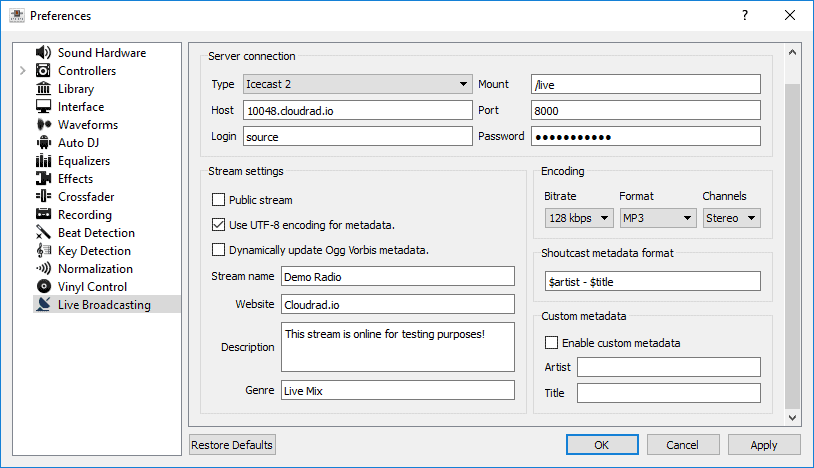
Encoder settings
- Format: MP3. Mixxx can't stream AAC, so use MP3 rather than the 256 kbps AAC the Live DJ page recommends for encoders that have it.
- Bitrate: 320 kbps. CloudRadio makes the lower bitrates for your listeners, so send one high-quality stream.
- Leave the metadata format as it is unless you want to customize what listeners see as the tracks play.
- Click Apply, then OK.
To go live, choose Options > Enable Live Broadcasting. On the Live DJ page, the input you used shows as connected.
Start broadcasting
Talking over the music is possible since you get four microphone inputs. You can also connect your broadcasting desk using the Aux inputs. Recording your shows can be achieved.
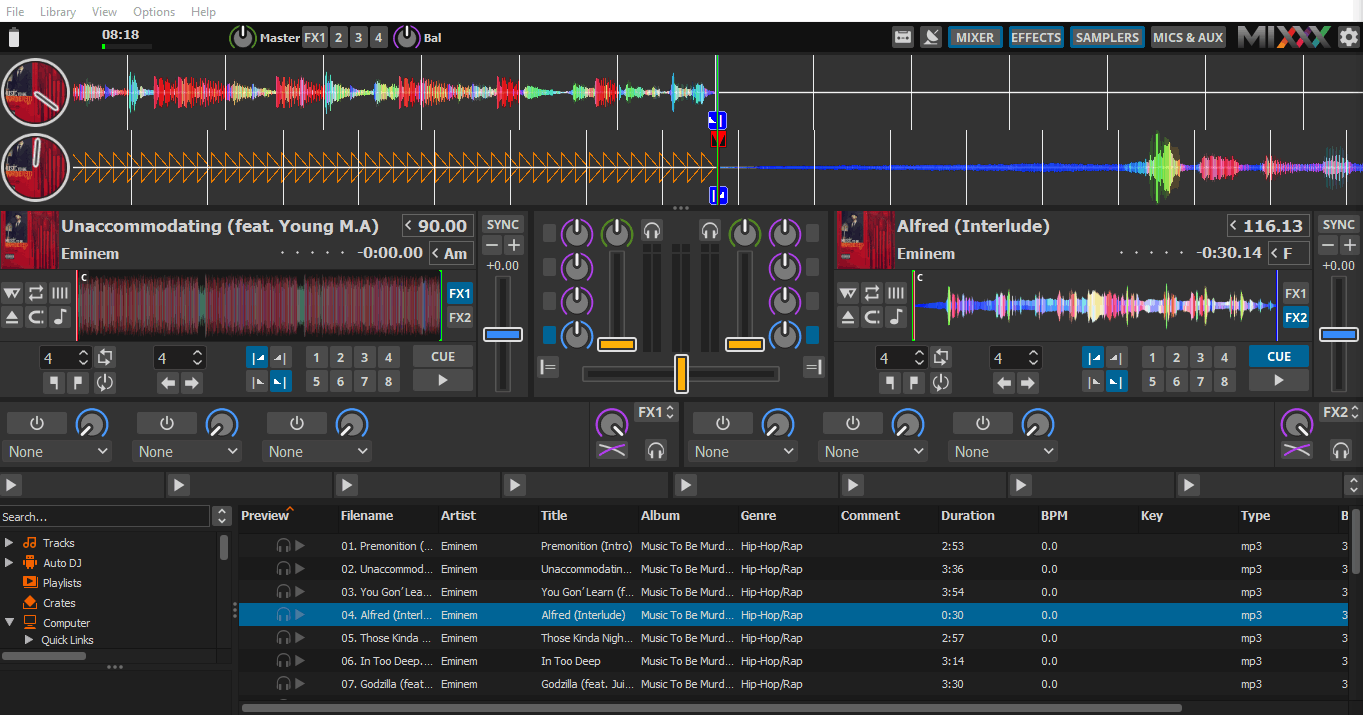
Learn more about the software by consulting the manual or review video tutorials on YouTube.
Need an alternative to Mixxx? Explore over 20 radio automation, DJ, and encoder programs on our broadcast software guide.